
You have just finished teaching a lesson, and before moving to the next topic, you want to know whether your students actually understood it. You could hand out another worksheet, ask a few questions in class, or spend your evening checking written answers. But what if you could create a short online quiz, share it with your students, and review their responses without marking every answer by hand?
That is where online quiz makers can help.
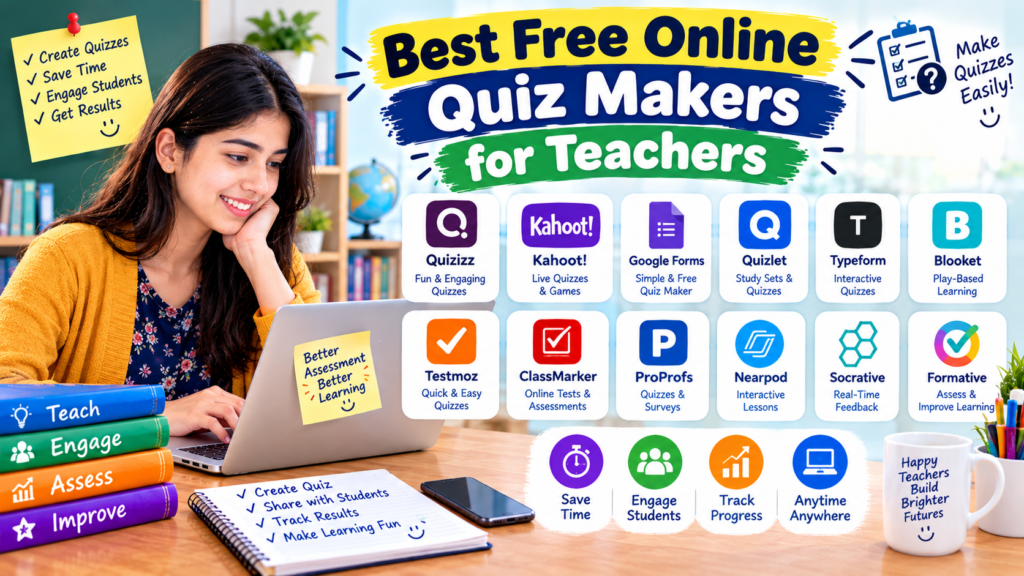
Teachers can use these tools to prepare quick revision activities, check understanding after a lesson, create homework quizzes, and make classroom practice more engaging. Some platforms focus on live quiz games, while others are better for formal assessments and automatically graded questions.
The challenge is choosing a tool that fits your teaching style without paying for features you do not need.
In this guide, we will look at the best free online quiz makers for teachers, explain what each one does well, discuss free-plan limitations, and show you how to create your first quiz.
What Is an Online Quiz Maker?
An online quiz maker is a website or digital tool that allows teachers to create questions and share them with students through a link, classroom platform, or live activity.
Depending on the tool, you may be able to create multiple-choice questions, true-or-false questions, short-answer activities, matching exercises, and other question formats.
Some tools grade answers automatically and display results immediately. Others let teachers review responses, provide feedback, and track student progress.
For example, a science teacher could prepare a 10-question quiz about the solar system. Students could complete it on their phones or computers, and the teacher could use the results to identify which topics need another explanation.
Online quizzes are not just for exams. They can also be useful for warm-up activities, homework, revision, and informal checks during a lesson.
1. Google Forms — Best Overall for Free Quizzes
<text color=”secondary” size=”sm”>Best for: Homework, assessments, revision, and automatically graded questions</text>
<AsyncImage query=”Google Forms quiz editor multiple choice questions answer key interface” aspectRatio=”16:9″ width=”100%” />
If you want a straightforward way to create a quiz without learning a complicated platform, Google Forms is an excellent place to start.
It allows teachers to create forms, add questions, share a link, and review responses. When you enable quiz mode, you can set correct answers, assign points, and provide feedback for supported question types.
One of its biggest advantages is that students can usually complete a shared quiz through a web browser, making it practical for classrooms where students use different devices.
Useful features
- Multiple-choice and other supported question types
- Answer keys and point values
- Automatic grading for supported questions
- Feedback for answers
- Response summaries and charts
- Option to send responses to Google Sheets
Google Forms can be particularly useful when you want to assess a lesson without turning it into a competitive game.
How to create a quiz with Google Forms
- Visit Google Forms.
- Create a blank form.
- Add a title, such as “Chapter 3 Science Quiz.”
- Open Settings and enable the quiz option.
- Add your questions and possible answers.
- Select the answer key for supported questions.
- Set the correct answer and point value.
- Preview the quiz to check that everything works.
- Share the quiz link with your students.
- Open the Responses section to review the results.
These steps follow Google’s official quiz-creation guidance. <Cite refs={[“turn155815search0″,”turn155815search2”]}/>
What to know before choosing it: Google Forms is more focused on forms and assessments than live classroom entertainment. Some responses, such as longer written answers, may require manual grading. Account and access settings can also affect who is allowed to respond.
My recommendation: Start with Google Forms if your priority is creating simple quizzes, collecting answers, and reviewing results without needing a paid subscription.
2. Kahoot! — Best for Live Classroom Quiz Games
<text color=”secondary” size=”sm”>Best for: Interactive revision, classroom competitions, and group activities</text>
<AsyncImage query=”Kahoot teacher live quiz classroom students colorful question screen” aspectRatio=”16:9″ width=”100%” />
Sometimes students need a change from ordinary worksheets. A live quiz can bring more energy into a lesson, especially when you are reviewing material before a test.
Kahoot! is designed around game-based learning. Teachers prepare questions, display them during a session, and invite students to participate using compatible devices.
For example, after teaching a history chapter, you could create a short quiz about important events and dates. Students answer the questions, and the class reviews the correct answers together.
What makes Kahoot! useful?
- Live quiz sessions
- Colorful question screens
- Game-style participation
- Revision activities
- Reports and other teacher tools, depending on the plan
The format can make review sessions feel more interactive, particularly when students enjoy participating in group activities.
How to use Kahoot!
- Visit Kahoot!.
- Create a teacher account.
- Choose the option to create a kahoot.
- Add questions and answer choices.
- Review the quiz and save it.
- Start a live session or use another sharing option available to your account.
- Follow the on-screen instructions to invite students.
What to know before choosing it: Kahoot! has free and paid offerings, and available features can vary by plan, account type, and school arrangement. Check the current plan details before using it with a large class.
A game-based quiz also should not be your only assessment method. Students may answer quickly under pressure without fully explaining what they understand.
My recommendation: Choose Kahoot! when your goal is to make classroom revision more interactive rather than simply collect written responses.
3. Wayground (Formerly Quizizz) — Best for Self-Paced Practice
<text color=”secondary” size=”sm”>Best for: Homework, independent revision, and classroom practice</text>
<AsyncImage query=”Wayground formerly Quizizz educational quiz student question interface” aspectRatio=”16:9″ width=”100%” />
Wayground, formerly known as Quizizz, offers quiz-based learning activities that teachers can use for classroom practice and independent work.
It is worth considering when students need to answer questions at their own pace instead of participating only in a live, teacher-led game.
Imagine that you teach English grammar. You could prepare questions about verbs, adjectives, and sentence structure, then assign the quiz as revision work. Students complete the activity, and you review the available results to see which concepts need more attention.
Features to explore
- Teacher-created quizzes and activities
- Multiple question formats, depending on availability
- Student practice activities
- Homework or assignment options
- Performance information and reports, depending on the plan
Getting started
- Open Wayground.
- Sign up or sign in.
- Explore the available quiz and lesson creation options.
- Create a quiz or choose suitable existing content.
- Check the questions and answer key.
- Assign or share the activity using the available options.
- Review student responses and available reports.
What to know before choosing it: Wayground offers different plan options, and some tools or reporting features may be restricted to paid plans. Because the platform was previously called Quizizz, you may still encounter older tutorials using its former name.
My recommendation: Consider Wayground if you want students to complete practice activities independently or need a different format from a traditional online form.
4. Microsoft Forms — Best for Teachers Using Microsoft 365
<text color=”secondary” size=”sm”>Best for: School assessments, quick tests, and Microsoft-based classrooms</text>
<AsyncImage query=”Microsoft Forms quiz creation interface questions points correct answer settings” aspectRatio=”16:9″ width=”100%” />
If your school already uses Microsoft tools, Microsoft Forms is a practical option for creating quizzes and collecting responses.
Its quiz functionality allows teachers to add questions, define correct answers for supported formats, and review student responses. Depending on the account and available features, it can also work alongside other Microsoft education tools.
For example, a computer teacher could prepare a short quiz on keyboard shortcuts or computer hardware and use the results to identify topics that need further explanation.
Why consider Microsoft Forms?
- Simple online quiz creation
- Multiple-choice and other supported question types
- Answer settings and points
- Response collection and review
- Integration with parts of the Microsoft ecosystem
How to make your first quiz
- Visit Microsoft Forms.
- Sign in with an account that supports the service.
- Create a new quiz.
- Add your questions and answer options.
- Set correct answers and points where supported.
- Review the quiz before sharing.
- Send the quiz link to students.
- Check the response summary.
What to know before choosing it: Access and functionality can depend on your Microsoft account, school subscription, and organization settings. Confirm that the features you need are available with your account.
My recommendation: If your school already works with Microsoft 365, try Microsoft Forms before introducing a completely separate quiz platform.
5. Blooket — Best for Game-Based Learning Activities
<text color=”secondary” size=”sm”>Best for: Review games and activities for younger learners</text>
<AsyncImage query=”Blooket teacher hosted classroom educational quiz game interface” aspectRatio=”16:9″ width=”100%” />
Some students respond well to traditional tests, while others become more interested when revision includes a game.
Blooket combines question sets with game-based activities. Teachers can use questions they create or explore available question sets, then choose from the game modes supported by the platform.
For example, a primary-school teacher might prepare questions about multiplication tables and use a game activity to help students practice the same skills in a different format.
What makes Blooket different?
- Game-based classroom activities
- Question sets that can be reused
- Teacher-created learning content
- Options for different styles of practice
- A format that can make revision feel less repetitive
How to get started
- Visit Blooket.
- Create or access a teacher account.
- Explore existing question sets or create your own.
- Select an available game mode.
- Follow the instructions to host or assign the activity.
- Review the results and discuss any common mistakes.
What to know before choosing it: Some features and game options may depend on your account or subscription. The playful format may also be less appropriate for a formal exam or a topic that requires detailed written answers.
My recommendation: Blooket can be a good option for short review activities when you want students to practice key facts through a game.
6. Socrative — Best for Quick Understanding Checks
<text color=”secondary” size=”sm”>Best for: Formative assessment and checking comprehension during lessons</text>
<AsyncImage query=”Socrative teacher assessment dashboard student responses quiz results” aspectRatio=”16:9″ width=”100%” />
Sometimes a teacher does not need a full test. They simply want to know whether the class understood the lesson before moving on.
Socrative is an assessment tool designed for activities such as quizzes and quick checks of student understanding. Teachers can use it to collect responses and examine the results.
Imagine that you have just explained fractions. Before starting the next topic, you ask a few questions to find out whether students understand how to compare fractions with different denominators.
The responses can help you decide whether to continue or revisit the explanation.
Useful classroom applications
- Short quizzes during lessons
- Quick checks after explanations
- Review activities
- Student response collection
- Results that help guide follow-up teaching
How to try it
- Visit Socrative.
- Review the available teacher options.
- Create an account if required.
- Prepare a short assessment.
- Start or share the activity according to the available instructions.
- Review student responses and use them to plan the next lesson.
What to know before choosing it: Free access may have limits on activities, rooms, or other features. Review the current plan details before deciding whether it fits your class size.
My recommendation: Explore Socrative if your main purpose is to check understanding and adjust your teaching based on student responses.
7. Quizlet — Best for Vocabulary and Memorization
<text color=”secondary” size=”sm”>Best for: Definitions, language learning, and quick revision</text>
<AsyncImage query=”Quizlet digital flashcards vocabulary learning study set interface” aspectRatio=”16:9″ width=”100%” />
Not every quiz needs to look like a formal test. Sometimes students simply need to remember important terms, definitions, vocabulary, or facts.
Quizlet is known for digital flashcards and study activities. Teachers and students can create study sets and use them to review information in short sessions.
For example, a biology teacher could prepare a set containing scientific terms and their definitions. Students could use the cards to test their memory before a classroom quiz.
Why teachers may find it useful
- Digital flashcard sets
- Vocabulary practice
- Revision of definitions and key terms
- Reusable study materials
- Activities suitable for short study sessions
How to use Quizlet for teaching
- Visit Quizlet.
- Create an account if needed.
- Make a study set with terms and definitions.
- Check that the information is accurate.
- Share the set with students where the available settings allow.
- Encourage students to practice before a formal assessment.
What to know before choosing it: Quizlet is primarily a study and memorization platform rather than a complete formal quiz-management system. Some modes and features require payment, and free access can vary.
My recommendation: Use Quizlet when students need repeated practice with vocabulary, terminology, or factual information.
Quick Comparison: Which Free Quiz Maker Should You Choose?
| Tool | Best use | Important consideration |
|---|---|---|
| Google Forms | Graded quizzes and homework | Some responses require manual grading |
| Kahoot! | Live quiz games | Free-plan features may be limited |
| Wayground | Self-paced practice | Some features may require a paid plan |
| Microsoft Forms | Assessments in Microsoft-based schools | Account access affects availability |
| Blooket | Game-based revision | Less suitable for detailed written assessment |
| Socrative | Quick comprehension checks | Check current free-plan limits |
| Quizlet | Flashcards and memorization | Not a complete formal assessment platform |
There is no single best quiz maker for every teacher. The right choice depends on your teaching goals, class size, students’ devices, and the features you can access for free.
How to Create an Effective Online Quiz
Choosing the platform is only half the job. A quiz also needs clear questions and a sensible purpose.
Here is a practical process you can use with most of the tools above.
Step 1: Decide what students should learn
Start with a clear objective.
For example, after a lesson about computer hardware, students should be able to identify the basic functions of a processor, memory, storage, and input devices.
A specific objective makes it easier to decide which questions belong in the quiz.
Step 2: Choose a manageable number of questions
For a quick classroom check, begin with around five to ten questions. A longer assessment may require more, depending on the subject and available time.
The goal is to measure understanding, not simply make the quiz long.
Step 3: Mix question types when appropriate
Multiple-choice questions are convenient for automatic grading. True-or-false questions can check basic understanding, while short-answer questions may reveal how well students can explain a concept.
Choose formats that match the skill you want to assess.
Step 4: Write clear questions
Avoid confusing wording and unnecessary details.
For example, instead of asking, “Which of the following is a device that is not not used for input?” ask, “Which device is commonly used to enter text into a computer?”
Clear wording helps students focus on the subject rather than trying to decode the question.
Step 5: Check the answers
Review every question and its answer key before sharing the quiz. If you use existing questions or AI-generated suggestions, verify that the answers are accurate and suitable for the students’ level.
Step 6: Preview the student experience
Open the quiz preview and check that the questions display correctly. If possible, test the quiz on a phone as well as a computer.
Check for missing answer choices, broken images, confusing instructions, and incorrect point values.
Step 7: Review the results and respond
After students finish, look for patterns in their answers.
If many students choose the same incorrect option, that may indicate a misunderstanding worth revisiting. A quiz is most useful when its results help you decide what to teach next.
Example: Creating a Free Science Revision Quiz
Imagine you are teaching a lesson about the solar system and want to check students’ understanding.
You could create a short quiz with questions such as:
- Which planet is closest to the Sun?
- Which planet is known for its prominent ring system?
- What is the name of Earth’s natural satellite?
- Which star is at the center of our solar system?
- Why does the Moon appear bright when viewed from Earth?
For questions with one clear correct answer, you could use Google Forms and set up automatic grading where supported. For a live revision session, you could adapt the questions for Kahoot! or Blooket.
The final question may require a written explanation, depending on how you phrase it. You should decide whether students need to select an answer or explain the concept in their own words.
This is a useful reminder that the best question format depends on what you want to learn about your students’ understanding.
Common Mistakes Teachers Should Avoid
1. Making every question multiple choice
Multiple-choice questions are convenient, but they do not always reveal how well students can explain an idea. Include other formats when they suit the learning objective.
2. Using confusing answer choices
Incorrect answers should be plausible enough to test understanding, but they should not be misleading because of vague wording.
3. Making quizzes too long
A short revision activity should not feel like an unexpected final examination. Match the number of questions to the available time and purpose.
4. Forgetting to check the answer key
An incorrect answer key can confuse students and produce misleading results. Preview the entire quiz before sharing it.
5. Choosing a platform without checking its free plan
Some tools limit the number of participants, activities, or reports available without payment. Check these limits before building a quiz for an entire class.
6. Treating a score as the whole story
A quiz score tells you something, but it does not explain everything a student understands. Use results alongside classroom discussion, written work, and other assessments.
7. Ignoring privacy and accessibility
Use account settings carefully, collect only the information you actually need, and check whether students can access the quiz on their available devices. Provide another way to participate when a student cannot use the chosen platform.
Final Thoughts
The best free online quiz makers for teachers are the ones that make assessment easier while helping students learn from their mistakes.
Google Forms is a strong starting point for simple, automatically graded quizzes. Kahoot! and Blooket are useful for game-based revision, while Wayground supports different styles of practice. Microsoft Forms can be convenient for schools already using Microsoft tools, and Socrative is worth exploring for quick checks of understanding. Quizlet is particularly useful for vocabulary and memorization.
You do not need to sign up for every platform. Choose one tool that matches your classroom needs, create a short quiz, and see whether the results help you identify what students understand and what needs more explanation.
Start with a few clear questions, check the answers, and use the results to guide your next lesson. That is what makes an online quiz useful—not just how colorful it looks or how quickly students can finish it.