
Imagine you have an assignment due tomorrow. You open your laptop, prepare to write your report, and discover that the version of Microsoft Office installed on your computer requires a subscription or activation. You do not want to spend money just to write a few pages, create a presentation, or finish a spreadsheet.
If you have ever faced this situation, you are not alone. Students regularly need tools for writing assignments, preparing class presentations, organizing research, and working with tables. Paying for office software may not be practical, especially when free alternatives can handle many everyday school and college tasks.
The good news is that you have several options. Some work directly in a web browser, while others can be installed on a laptop and used without an internet connection. Many can open Microsoft Word, Excel, and PowerPoint files, although complicated documents may not look exactly the same in every application.
In this guide, we will explore the best free alternatives to Microsoft Office for students, compare their useful features, explain their limitations, and show you how to choose the right software for your studies.
Why Students Need an Alternative to Microsoft Office
Microsoft Office is widely used in schools, colleges, universities, and workplaces. Its familiar applications include Word for documents, Excel for spreadsheets, and PowerPoint for presentations.
However, not every student needs every feature included in a paid office suite.
A student writing a weekly assignment may only need a word processor. Someone preparing a group presentation may need an easy way to collaborate online. Another student may want desktop software that works when the internet is unavailable.
The right alternative depends on how you work.
For example, if you regularly write essays and share them with teachers, an online document editor may be sufficient. If you use a laptop with limited internet access, an offline office suite may be a better choice.
Before choosing a tool, consider three things:
- Cost: Can you use the features you need without paying?
- Compatibility: Can the application open and save Word, Excel, and PowerPoint files?
- Internet access: Can you continue working when your connection is unavailable?
These questions will help you avoid installing software that looks impressive but does not fit your daily needs.
1. Google Docs, Sheets, and Slides
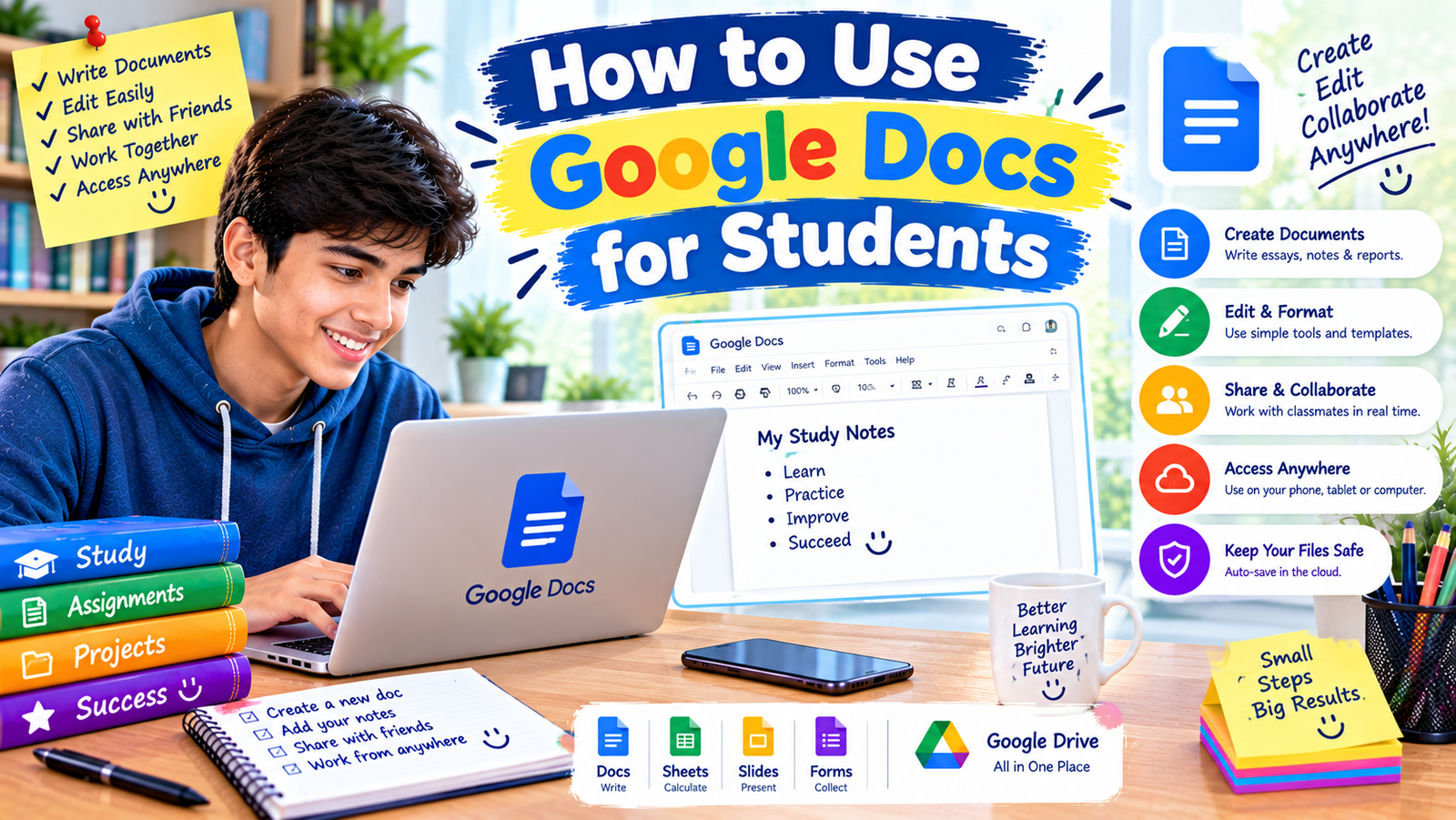
<text> <Entity category=”software” value=”Google Docs” disambig=”online word processing application”/> </text> is one of the easiest places to start if you need a free alternative to Microsoft Office. It is part of Google’s online productivity tools, alongside Google Sheets and Google Slides.
<AsyncImageGroup query={[“Google Docs document editor interface”,”Google Sheets spreadsheet interface”,”Google Slides presentation editor interface”]} aspectRatio=”5:4″ layout=”bento” size=”lg”/>
The biggest advantage is convenience. You can open a browser, sign in to your Google account, and start working without installing a traditional desktop office suite.
What can students do with it?
Google Docs is suitable for essays, reports, notes, and assignment drafts. Google Sheets can handle tables, calculations, budgets, and basic data analysis. Google Slides helps you create presentations for classroom projects.
One particularly useful feature is automatic saving. Your work is generally saved to Google Drive as you edit, provided the service is working and your changes can sync. This reduces the risk of losing a document because you forgot to save it manually.
You can also share a document with classmates or teachers. Depending on the permissions you choose, other people can view, comment on, or edit the same file.
Imagine you are preparing a group presentation. One classmate can collect research, another can write the main points, and you can organize the slides without repeatedly sending updated files by email.
Main advantages
- Free access to core productivity features with a Google account.
- Works in a web browser on many computers and mobile devices.
- Supports real-time collaboration.
- Makes it easy to organize files in Google Drive.
- Can work offline when the relevant settings and files are prepared in advance.
Limitations to know
You will generally have the smoothest experience when you have an internet connection. Offline editing requires preparation and may not be available in every setup.
Complex Word documents, specialized fonts, page layouts, and advanced spreadsheet features may also behave differently when imported.
Best for: Students who write assignments, create presentations, and collaborate on group projects.
Official website: https://docs.google.com/
2. LibreOffice
<text><Entity category=”software” value=”LibreOffice” disambig=”free open-source desktop office suite”/></text> is an excellent option if you want a full office suite installed directly on your computer.
<AsyncImageGroup query={[“LibreOffice Writer document editor desktop”,”LibreOffice Calc spreadsheet application”,”LibreOffice Impress presentation application”]} aspectRatio=”5:4″ layout=”bento” size=”lg”/>
Unlike browser-based tools, LibreOffice is designed to work locally on your computer. Once it is installed, you can create and edit documents without needing a continuous internet connection.
The suite includes several applications:
- Writer: For essays, letters, reports, and other text documents.
- Calc: For spreadsheets, formulas, tables, and charts.
- Impress: For presentations and classroom slides.
- Draw: For diagrams and simple visual documents.
- Base: For database-related work.
For a student who frequently works offline, this can be a major advantage.
Why is LibreOffice useful for students?
Suppose you have a research assignment to complete and your internet connection is unreliable. With LibreOffice Writer, you can type your report, format headings, add tables, and save your work to your computer.
You can then export the document as a PDF when you need to submit a version that should not be easily changed.
LibreOffice supports Microsoft Office formats such as DOCX, XLSX, and PPTX, as well as its own open document formats. Compatibility is useful, although documents containing complicated formatting, macros, or specialized features should always be checked after opening or saving.
Main advantages
- Free to download and use.
- Open-source software.
- Works offline after installation.
- Includes word processing, spreadsheets, and presentations.
- Supports many common document formats.
- Suitable for students who want to avoid recurring subscription costs.
Limitations to know
The interface may feel unfamiliar if you are used to Microsoft Office. Some imported files may have shifted layouts, different fonts, or altered spacing.
Collaboration is also less straightforward than in cloud-first tools such as Google Docs.
Best for: Students who want a complete, free desktop office suite and need offline access.
Official website: https://www.libreoffice.org/
3. ONLYOFFICE Desktop Editors
<text><Entity category=”software” value=”ONLYOFFICE Desktop Editors” disambig=”desktop document editing software”/></text> is another option worth considering, especially if you regularly exchange Microsoft Office files with teachers or classmates.
<AsyncImage query=”ONLYOFFICE Desktop Editors document spreadsheet presentation editor interface” aspectRatio=”16:9″ width=”100%”/>
The desktop application includes tools for text documents, spreadsheets, and presentations. It supports many common Microsoft Office formats, making it useful when you receive assignments as DOCX files or need to prepare a PPTX presentation.
Its interface may feel familiar to people who prefer a ribbon-style toolbar similar to the one found in Microsoft Office.
What makes it useful?
Imagine your teacher sends you a Word document containing instructions and a formatting template. You can open the file in ONLYOFFICE, complete the assignment, and save it in a compatible format.
This can be more convenient than converting the file into a different format before editing it.
The desktop editors can be used for local work without a constant internet connection. Certain cloud collaboration services and additional features may require an account or separate service.
Main advantages
- Desktop editing for documents, spreadsheets, and presentations.
- Support for common Microsoft Office file formats.
- Offline editing with the desktop application.
- A familiar interface for many Office users.
- Useful for assignments that need to retain existing formatting.
Limitations to know
Not every advanced Microsoft Office feature is guaranteed to work identically. You should also check the licensing and availability of individual editions or additional services before relying on a particular feature.
Best for: Students who frequently open and edit DOCX, XLSX, and PPTX files.
Official website: https://www.onlyoffice.com/desktop.aspx
4. WPS Office Free
<Entity category=”software” value=”WPS Office” disambig=”office productivity software suite”/> is a popular office suite that offers document editing, spreadsheets, and presentation tools in one application.
<AsyncImage query=”WPS Office Writer spreadsheet presentation desktop application interface” aspectRatio=”16:9″ width=”100%”/>
One reason students consider WPS Office is its familiar interface. If you have used Microsoft Word or PowerPoint before, many of the menus and formatting controls may feel recognizable.
You can use it to write assignments, create tables, edit existing office documents, and prepare presentations. Its PDF-related tools may also be useful for reading and handling study materials, although some capabilities may be restricted to paid plans.
Main advantages
- Provides document, spreadsheet, and presentation tools.
- Supports many common Microsoft Office formats.
- Offers desktop and mobile options.
- Has a familiar interface for many Office users.
- Includes useful document and PDF-related features.
Limitations to know
WPS Office has a free offering, but not every feature is free. Depending on the version and platform, you may encounter advertisements, premium upgrade prompts, or restrictions on certain tools.
Before installing it, review the current terms and check which features are available without payment.
Best for: Students who prefer a familiar office interface and want several productivity tools in one application.
Official website: https://www.wps.com/
5. Microsoft 365 for the Web
Here is an option you should not overlook: you may not need to replace Microsoft Office at all.
<Entity category=”software” value=”Microsoft 365 for the web” disambig=”browser-based Word Excel and PowerPoint applications”/> provides free browser-based versions of Word, Excel, and PowerPoint with a Microsoft account.
<AsyncImage query=”Microsoft Word Excel PowerPoint web applications browser interface” aspectRatio=”16:9″ width=”100%”/>
This is particularly useful when your school expects assignments in Microsoft Office formats or when you want to remain within Microsoft’s ecosystem.
For example, you can write an assignment in Word for the web, create a spreadsheet in Excel for the web, and prepare presentation slides in PowerPoint for the web.
Your documents can be stored in OneDrive, making them accessible from other supported devices.
Main advantages
- Free access to core web versions with a Microsoft account.
- Familiar Word, Excel, and PowerPoint interfaces.
- Convenient storage and sharing through OneDrive.
- Good compatibility with Microsoft’s own file formats.
- No traditional desktop installation required.
Limitations to know
The web versions do not include every feature available in the paid desktop applications. Some advanced formatting, macros, data tools, and other specialized features may require a desktop edition or subscription.
You will generally need an internet connection, although offline options depend on your setup and are more limited than those of desktop office suites.
Best for: Students who need Word, Excel, and PowerPoint compatibility without paying for a desktop subscription.
Official website: https://www.microsoft365.com/
6. Apple iWork: Pages, Numbers, and Keynote
If you use a Mac, iPad, or iPhone, Apple’s iWork applications are worth exploring.
<AsyncImageGroup query={[“Apple Pages word processor interface”,”Apple Numbers spreadsheet application interface”,”Apple Keynote presentation editor interface”]} aspectRatio=”5:4″ layout=”bento” size=”lg”/>
The suite includes three main applications:
- Pages: For reports, essays, and other documents.
- Numbers: For spreadsheets, calculations, and charts.
- Keynote: For presentations and visual storytelling.
These applications can be particularly useful for students who already own Apple devices. They offer attractive document layouts and presentation designs without requiring a Microsoft Office subscription for their core applications.
Pages and Keynote are helpful when the visual appearance of your work matters. Numbers can also handle many common school and personal spreadsheet tasks.
Main advantages
- Useful document and presentation design features.
- Works well within Apple’s device ecosystem.
- Supports collaboration through compatible sharing features.
- Can import and export various Microsoft Office formats.
- Core applications are available without an Office subscription on supported Apple devices.
Limitations to know
The experience is less convenient if you primarily use Windows or Android. Imported Office documents may also need formatting adjustments, especially when they contain complex layouts or advanced spreadsheet features.
Best for: Students who use Apple devices and want attractive documents and presentations.
Official website: https://www.apple.com/iwork/
Quick Comparison: Which Free Office Alternative Is Best?
The following table summarizes the main differences.
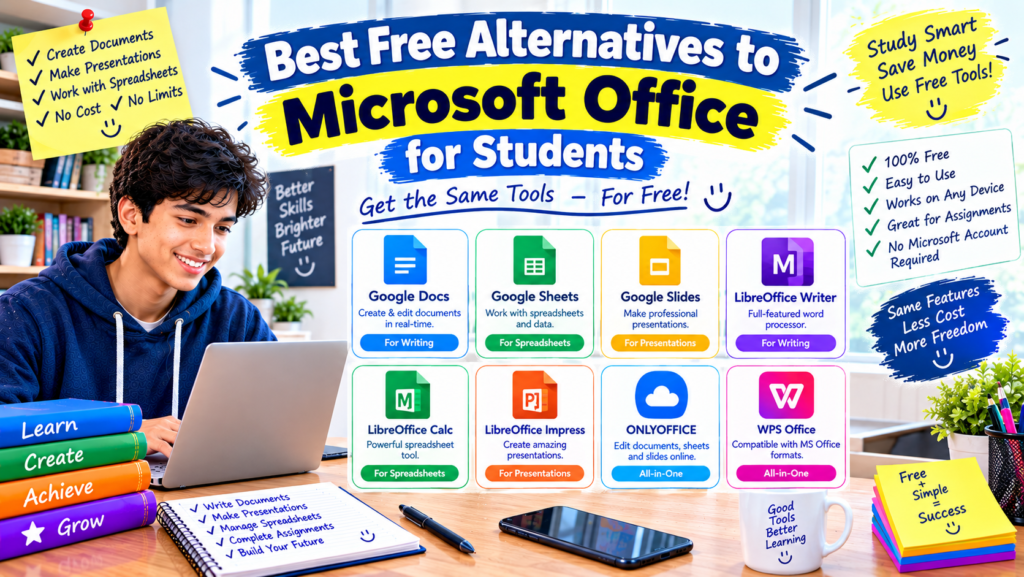
| Software | Works offline? | Best use | Main consideration |
|---|---|---|---|
| Google Docs, Sheets, Slides | Yes, with preparation | Collaboration and assignments | Internet is useful for syncing |
| LibreOffice | Yes | Complete desktop office suite | Interface may take time to learn |
| ONLYOFFICE Desktop Editors | Yes | Editing Office-compatible files | Check complex formatting |
| WPS Office Free | Generally, with desktop tools | Familiar office interface | Some features are paid |
| Microsoft 365 for the web | Mainly online | Microsoft file compatibility | Fewer features than desktop apps |
| Apple iWork | Yes, in supported apps | Mac, iPad, and iPhone users | Best suited to Apple devices |
Availability and individual features can change, so check each provider’s official website before installing software.
How to Choose the Right Free Office Software
There is no single best alternative for every student. The right choice depends on the type of work you do most often.
If you mainly write assignments
Start with Google Docs or LibreOffice Writer.
Google Docs is convenient when you need to share documents or access them from different devices. LibreOffice is a strong choice if you prefer saving your files locally and working offline.
If you regularly create presentations
Google Slides, Microsoft PowerPoint for the web, LibreOffice Impress, and Apple Keynote are all worth considering.
Choose one that makes it easy to organize information, add images, and create readable slides. Remember that a presentation does not need dozens of animations to communicate its message effectively.
If you need spreadsheets
Google Sheets, LibreOffice Calc, and Excel for the web can handle many student tasks, including calculations, charts, tables, and simple data analysis.
For advanced coursework involving specialized Excel features, check whether your instructor requires the desktop version of Microsoft Excel.
If you have unreliable internet access
LibreOffice or ONLYOFFICE Desktop Editors may be more practical because they support offline desktop work.
Download the installer from the official website while your connection is available, and save your assignments locally.
If your school requires Microsoft Office formats
Microsoft 365 for the web and ONLYOFFICE are good starting points. LibreOffice and WPS Office can also open many common Microsoft Office files.
However, file compatibility is not the same as perfect formatting compatibility. If a teacher provides a template, open it in your chosen application and check the result before completing the assignment.
Step-by-Step: Get Started With a Free Office Alternative
If you are unsure where to begin, follow this simple process.
Step 1: Decide what you need.
Make a short list of your usual tasks. Do you write essays, create presentations, prepare spreadsheets, or work with PDF documents?
Step 2: Choose one application.
If you want online collaboration, try Google Docs. If you need offline desktop software, start with LibreOffice. If Microsoft file compatibility is your main concern, try Microsoft 365 for the web or ONLYOFFICE.
Step 3: Visit the official website.
Download desktop software directly from its official provider. For browser-based applications, open the official website and sign in if required.
Avoid unofficial download sites that may distribute modified installers or unwanted software.
Step 4: Create a test document.
Write a short paragraph, add a heading, insert a small table, and save the file. If you expect to exchange documents with Microsoft Office users, test the relevant file format before relying on it for an important assignment.
Step 5: Check your file-saving system.
Choose a clear folder structure on your computer or use a cloud service where appropriate. Keep backup copies of important work.
Step 6: Practice before a deadline.
Do not wait until the night before an assignment to discover that your selected application changes the formatting of a teacher’s template. Test it in advance and leave time to fix any problems.
This small preparation step can prevent unnecessary stress.
Common Mistakes Students Should Avoid
Choosing free office software can save money, but a few common mistakes are worth avoiding.
Assuming every feature is free
A free download does not necessarily mean that every feature is included at no cost. Some applications have premium subscriptions, optional upgrades, or restrictions on advanced tools.
Review the current plan details before depending on a particular feature.
Ignoring file compatibility
A document may open successfully but still display different fonts, page breaks, tables, or spacing.
When submitting an assignment, check the final file on a compatible application if possible. Exporting to PDF can help preserve the appearance of a document when editing is no longer required, provided your teacher accepts PDF submissions.
Saving files in only one place
Computer problems, accidental deletion, or synchronization issues can cause you to lose work.
Save your documents regularly and keep a second copy of important assignments. If you use cloud storage, check that your files have finished syncing rather than assuming every change has been uploaded.
Installing several office suites at once
You do not need six different applications to write a school report.
Trying too many tools can make your workflow confusing, especially when files open in different applications. Choose one main suite and learn its basic features before switching.
Downloading software from unfamiliar websites
Free software should not require you to take unnecessary security risks.
Use official download pages, review installation options, and avoid installers that bundle unrelated programs. Keep your operating system and security software updated.
Forgetting to check school requirements
Some schools require a specific file format or particular features. If an assignment involves complex spreadsheets, specialized formatting, or tracked changes, ask your teacher which tools are acceptable.
A free alternative is useful only if it meets the requirements of your work.
Frequently Asked Questions
Are free alternatives to Microsoft Office good enough for students?
Yes. For many everyday tasks, including writing essays, preparing presentations, organizing notes, and creating basic spreadsheets, free alternatives provide all the functionality a student needs.
Advanced academic work may require specialized features, so check your course requirements before choosing a tool.
What is the best completely free Microsoft Office alternative?
LibreOffice is one of the strongest choices if you want a free desktop suite with word processing, spreadsheet, and presentation applications.
Google Docs is an excellent alternative for browser-based collaboration, while Microsoft 365 for the web provides free access to core browser versions of Microsoft’s applications.
Can I open Word and Excel files without Microsoft Office?
Yes. Google Docs, LibreOffice, ONLYOFFICE, WPS Office, and other applications can open many DOCX and XLSX files.
Complex documents may need formatting adjustments, so check the results before editing or submitting important work.
Can I use these alternatives without an internet connection?
Yes, several can. LibreOffice and ONLYOFFICE Desktop Editors support offline desktop editing. Apple iWork applications also offer offline functionality in supported setups.
Google Docs can work offline when configured appropriately, but you should prepare your device and files in advance.
Are free office applications safe to download?
Applications from established providers can be reasonable choices, but no download is automatically risk-free.
Download software from official websites, review permissions and installation options, and keep your device updated. Be cautious of websites offering modified or unofficial installers.
Do students get Microsoft Office for free?
Some educational institutions provide Microsoft 365 access to eligible students and staff. Availability depends on the institution’s agreement and eligibility requirements.
Check with your school’s IT department or visit Microsoft’s official education website to see whether you qualify.
Microsoft education information: https://www.microsoft.com/education
Final Thoughts
You do not have to pay for Microsoft Office simply to write assignments, prepare presentations, or complete everyday schoolwork. Several free alternatives can handle these tasks well, and each has its own strengths.
For online collaboration, Google Docs is an easy starting point. For offline desktop work, LibreOffice is a strong choice. If you regularly exchange Microsoft Office files, consider ONLYOFFICE or Microsoft’s free web applications. Apple users may also find Pages, Numbers, and Keynote convenient.
My practical recommendation is to start with one tool that matches your most common study tasks. Create a test document, check its file compatibility, and make sure you know where your work is saved.
Once you have a reliable setup, you can focus less on software and more on the work that matters: learning your subjects, completing assignments, and developing useful skills.