
Imagine you have a school assignment due tomorrow, but your computer does not have Microsoft Word installed. You still need to write your homework, organize your notes, and send the finished document to your teacher. What can you do?
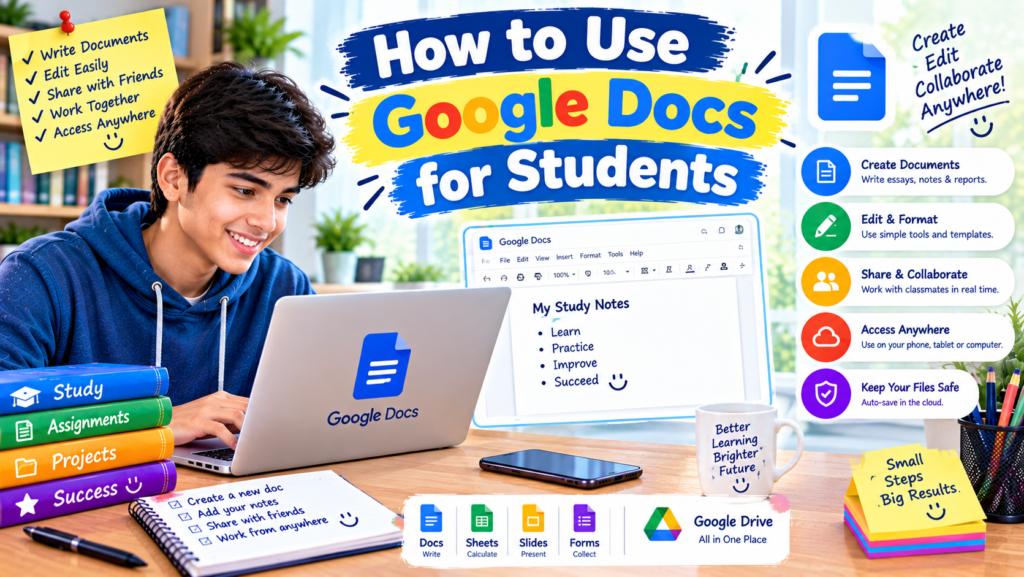
Google Docs is one practical option. It lets students write assignments, create notes, work with classmates, and access documents online without needing to install a traditional word-processing program.
The best part is that you can start with a free Google account. Once you understand a few basic features, you can use Google Docs for everyday schoolwork, college assignments, group projects, and personal study notes.
In this guide, you will learn how to use Google Docs for students, from creating your first document to sharing work, formatting assignments, and avoiding common mistakes.
What Is Google Docs?
Google Docs is an online word processor from Google. You can use it to write and edit documents through a web browser or the Google Docs mobile app.
It works similarly to Microsoft Word in many ways. You can type text, add headings, insert pictures, create tables, check spelling, and download documents in different formats.
However, Google Docs has a useful feature for students: documents can be saved automatically to Google Drive when you are working online and signed in. This reduces the risk of losing work because you forgot to press the Save button.
Students commonly use Google Docs for:
- Writing homework and school assignments
- Preparing essays and reports
- Making revision notes
- Creating project outlines
- Working on group assignments
- Sharing documents with teachers
- Preparing study guides and research summaries
You do not need advanced computer skills to get started. If you can type, select text, and use a web browser, you can learn the basics.
1. How to Open Google Docs and Create an Account
Before writing your first assignment, you need access to Google Docs.
If you already have a Google account, you can usually begin without creating another one.
Follow these steps:
- Open a web browser on your laptop or computer.
- Visit Google Docs.
- Sign in with your Google account if requested.
- On the Docs home page, select the option to create a blank document.
- Wait for the new document to open.
You can also visit Google Drive at drive.google.com and create a Google Docs file from there.
If you are using a smartphone, install or open the Google Docs app from your device’s official app store. Sign in and tap the option to create a new document.
Helpful tip: If you are using a shared school computer, do not leave your Google account signed in when you finish. Sign out and make sure your personal documents are not left open for the next person.
2. How to Create Your First School Assignment
Once your blank document opens, you can start typing immediately.
Let’s say your teacher has assigned you an essay about the importance of education. Instead of worrying about design at the beginning, focus on writing your ideas first.
You might start with a simple structure:
Title: The Importance of Education
Introduction: Explain why education matters.
Main points: Discuss knowledge, skills, opportunities, and personal development.
Conclusion: Summarize your main ideas.
To begin:
- Click inside the blank page.
- Type your title.
- Press Enter to move to the next line.
- Write your introduction.
- Continue with the main body and conclusion.
- Review the document when you finish.
You can edit your text at any time. If you make a mistake, use Backspace or Delete, or press Ctrl+Z on Windows to undo your last action.
A useful habit is to write a rough draft before spending time on formatting. This makes it easier to concentrate on your ideas instead of constantly changing fonts and colors.
3. How to Format Your Assignment Properly
A well-organized document is easier to read and looks more polished. Google Docs includes simple formatting tools that help you present your work clearly.
Change the Font and Font Size
Select the text you want to change. Use the font menu in the toolbar to choose a font and the size menu to adjust its size.
For a typical school assignment, a readable font such as Arial or Times New Roman may be suitable. A size around 11 or 12 points is a common starting point for body text, but follow your teacher’s requirements.
Make Text Bold, Italic, or Underlined
These options help emphasize important information.
- Bold: Useful for headings and important terms.
- Italic: Useful for occasional emphasis or certain titles.
- Underline: Use when needed, but avoid underlining too much text.
You can usually apply bold formatting with Ctrl+B on Windows or Command+B on Mac.
Align Your Text
Google Docs lets you align text to the left, center, right, or justify it.
For example, you might center the assignment title while keeping the body text left-aligned. Use the alignment that fits your teacher’s instructions.
Adjust Line Spacing
Line spacing controls the vertical space between lines of text.
If your teacher requests double spacing, select the relevant text and open the line and paragraph spacing menu. Choose the required option.
Remember: Do not assume that every assignment needs the same font, spacing, or margins. Check the instructions before making the final changes.
4. Use Headings to Organize Long Documents
If you are writing a long report or research project, headings can make your document much easier to navigate.
For example, a report about climate change might contain these sections:
- Introduction
- Causes of Climate Change
- Effects on the Environment
- Possible Solutions
- Conclusion
- References
Instead of simply making each heading bold, you can apply Google Docs heading styles.
To do this:
- Select a heading or place your cursor in the heading paragraph.
- Open the style menu in the toolbar, which may display “Normal text.”
- Choose Heading 1, Heading 2, or another suitable heading style.
- Repeat the process for the other sections.
Use Heading 1 for major sections and Heading 2 for smaller sections underneath them.
This approach creates a consistent appearance and helps Google Docs recognize the document’s structure. For longer files, you can also use the document outline to move between sections quickly.
5. How Google Docs Saves Your Work Automatically
One of the most convenient features for students is automatic saving.
When you are signed in and connected to the internet, Google Docs generally saves changes to Google Drive as you work. You do not have to remember to press Ctrl+S after every paragraph.
Still, automatic saving does not mean you should ignore your files.
Here are a few useful habits:
- Give your document a clear name.
- Check that your latest changes have been saved.
- Keep important assignments organized in Google Drive.
- Make a separate copy before making major changes to a final document.
- Check offline availability if you plan to work without internet access.
For example, instead of leaving a file named “Untitled document,” rename it to something like “Grade 9 Biology Assignment.”
To rename a document, click its name near the top-left area of the screen and enter the new name.
A clear filename makes it easier to find the correct assignment later, especially when you have several school projects due in the same week.
6. How to Share Google Docs With Teachers and Classmates
Sharing is one of Google Docs’ most useful features for schoolwork. You can give another person access to your document instead of sending multiple copies as email attachments.
For example, imagine you and two classmates are preparing a group report. One person can write the introduction, another can research the main topic, and the third can check spelling and references.
To share a document:
- Open the document.
- Click Share.
- Enter the email address of the person you want to share it with, or use the available link-sharing options.
- Choose the appropriate permission.
- Send the invitation or copy the link if link sharing is available and suitable.
Google Docs commonly offers three permission levels:
Viewer: The person can read the document but cannot edit it.
Commenter: The person can read and leave comments without directly editing the main text.
Editor: The person can make changes to the document.
Choose the permission carefully. If your teacher only needs to review your finished assignment, Viewer or Commenter may be sufficient, depending on the instructions.
If you share a link, check who can access it. Avoid setting a document to broad public access when it contains private information or unfinished schoolwork.
7. Use Comments and Suggestions for Feedback
Sometimes a teacher or classmate needs to point out a problem without changing your original writing.
Google Docs provides comments and, where available, Suggesting mode to make collaboration easier.
Add a Comment
- Select the relevant text.
- Choose the comment option, or use the Insert menu if needed.
- Type your question or feedback.
- Post the comment.
For example, a classmate might comment, “Can you add a source for this statistic?” You can then research the point and update the document.
Use Suggesting Mode
Suggesting mode allows collaborators to propose edits that can be reviewed before they become part of the document’s main text.
This is helpful when someone is checking your grammar or helping improve a paragraph.
Instead of accepting every suggested change automatically, read it first. A suggestion might improve a sentence, but it could also change the meaning of what you wanted to say.
8. How to Use Google Docs for Study Notes
Google Docs is not just for assignments. You can also use it to organize revision notes before exams.
Suppose you are studying biology and need to remember the main points about photosynthesis.
You could create a document with the following structure:
Topic: Photosynthesis
Definition: A process plants use to make food using light energy.
Main requirements:
- Light
- Water
- Carbon dioxide
- Chlorophyll
Key points:
- Photosynthesis mainly takes place in the leaves.
- Oxygen is released during the process.
- The process helps plants produce glucose.
Questions to review:
- What is the role of chlorophyll?
- Where do plants obtain carbon dioxide?
- Why is photosynthesis important?
This layout keeps information organized and gives you questions to test your understanding.
You can create a separate document for each subject or keep related topics in one file with clear headings.
For better organization, name your files consistently, such as “Biology Chapter 3 Notes” or “History Exam Revision.”
9. Insert Tables, Images, and Links
Sometimes plain text is not enough to explain an idea. Google Docs allows you to add other elements to make your work easier to understand.
Insert a Table
Tables are useful for comparing information.
For example, you could make a table comparing renewable and non-renewable energy sources.
| Renewable Energy | Non-Renewable Energy |
|---|---|
| Solar energy | Coal |
| Wind energy | Oil |
| Hydropower | Natural gas |
To add a table, open the Insert menu, select Table, and choose the number of rows and columns you need.
Insert an Image
Images can help explain a science concept, historical event, or geographical location.
Go to Insert, choose the available image option, and select a suitable source.
Make sure you have permission to use the image and provide attribution when required. Avoid inserting pictures simply to make a page look full.
Add a Link
Links can direct readers to useful websites or supporting sources.
Select the relevant text, use the link option, and enter the web address. For example, you might link to a trusted educational resource that supports a point in your report.
Before submitting, click your links to make sure they open the intended pages.
10. How to Check Spelling and Grammar
Small spelling and grammar mistakes can make an otherwise good assignment difficult to read.
Google Docs includes spelling and grammar assistance, although the available suggestions can vary by language and settings.
To review your document:
- Read it from beginning to end.
- Look for spelling or grammar suggestions.
- Review each suggested correction.
- Check names, dates, facts, and technical terms manually.
- Read the final version once more before submitting it.
Do not accept every suggestion without checking it. A grammar tool may misunderstand a sentence or recommend a change that alters your intended meaning.
Reading your work aloud can also help you spot missing words and awkward sentences.
If you are writing in English as a second language, keep your sentences clear and direct. Simple, accurate writing is often more effective than complicated wording.
11. How to Download Google Docs as a Word or PDF File
Your teacher may ask you to submit an assignment as a Microsoft Word document or PDF.
Google Docs allows you to download files in several formats.
Follow these steps:
- Open your document.
- Click File.
- Select Download.
- Choose the required format, such as Microsoft Word (
.docx) or PDF (.pdf). - Open the downloaded file to check its formatting.
Choose .docx if your teacher wants an editable Word document. Choose PDF if a fixed-layout document is requested.
After downloading, check the file’s page breaks, images, tables, and spacing. Formatting can occasionally look different between programs.
Do not assume that sharing a Google Docs link and submitting a downloaded file are the same thing. Follow the exact submission method your teacher requests.
12. Can Students Use Google Docs Without the Internet?
Yes, Google Docs has offline options, but you need to prepare before losing your internet connection.
Offline availability depends on your device, browser or app, account settings, and the files you have made available offline.
If you know you will be travelling or studying somewhere without reliable internet:
- Check the available offline settings in Google Docs or Google Drive.
- Enable offline access where supported.
- Make the relevant documents available offline.
- Open a document before disconnecting to confirm it is ready.
- Reconnect to the internet later so changes can synchronize.
Do not wait until you are already offline to prepare. A document that you have never made available offline may not open for editing when you need it.
13. Common Google Docs Mistakes Students Should Avoid
Learning a tool is easier when you know which problems to watch for.
Mistake 1: Forgetting to Rename Documents
Keeping every file named “Untitled document” makes it difficult to identify the correct assignment.
Better approach: Use descriptive filenames that include the subject or project name.
Mistake 2: Sharing the Wrong Permissions
Giving everyone Editor access can lead to accidental changes.
Better approach: Use Viewer or Commenter access when editing is not required. Give Editor access only to people who need to make changes.
Mistake 3: Relying Completely on Automatic Saving
Automatic saving is convenient, but internet interruptions or synchronization problems can still cause confusion.
Better approach: Check the save status and make sure the document is available before closing your work session.
Mistake 4: Copying Information Without Checking It
Copying paragraphs from websites without understanding them can lead to inaccurate work and plagiarism concerns.
Better approach: Read your sources, explain the information in your own words, and cite sources as required by your teacher.
Mistake 5: Ignoring Formatting After Downloading
A document can look slightly different when opened in another program.
Better approach: Open the downloaded Word or PDF file and review it before submission.
Mistake 6: Editing the Wrong Version
When several copies of a document exist, you may accidentally update an older version.
Better approach: Keep one clearly named main document and use version history or a separate copy when necessary.
14. Useful Keyboard Shortcuts for Students
Keyboard shortcuts can help you complete everyday tasks more quickly.
| Action | Windows or Chromebook | Mac |
|---|---|---|
| Copy | Ctrl + C | Command + C |
| Paste | Ctrl + V | Command + V |
| Undo | Ctrl + Z | Command + Z |
| Bold | Ctrl + B | Command + B |
| Italic | Ctrl + I | Command + I |
| Find text | Ctrl + F | Command + F |
| Select all | Ctrl + A | Command + A |
Some shortcuts may behave differently depending on your browser, device, or keyboard settings.
You do not need to memorize every shortcut on your first day. Start with copy, paste, undo, bold, and find. These are especially useful when working on longer assignments.
Frequently Asked Questions
Is Google Docs free for students?
Google Docs is available at no cost for many personal Google accounts. Some school or organization accounts may have additional features or restrictions depending on their Google Workspace plan.
Is Google Docs better than Microsoft Word?
Both tools are useful. Google Docs is particularly convenient for online collaboration and sharing, while Microsoft Word offers extensive document-formatting features. The best option depends on your assignment and your school’s requirements.
Can I use Google Docs on my mobile phone?
Yes. You can create, edit, and organize documents using the Google Docs mobile app. A computer may be more convenient for detailed formatting, but a phone can be useful for taking notes and making quick edits.
Does Google Docs save automatically?
When you are signed in and working online, Google Docs generally saves changes automatically. Check the save status, especially if your connection is unstable.
Can I submit Google Docs homework to my teacher?
Yes, if your teacher accepts a Google Docs link or a downloaded file. Check whether your teacher wants a shared link, Word document, PDF, or another format.
Can more than one student edit a Google Doc?
Yes. You can collaborate with other people by sharing a document and granting suitable permissions. The available collaboration features depend on account settings and access permissions.
How can I protect my school assignments?
Use a strong password for your Google account, keep your account secure, and share documents only with the people who need access. Avoid storing sensitive personal information in documents that are shared broadly.
Final Thoughts
Google Docs can make schoolwork easier by giving students one place to write assignments, prepare study notes, collaborate with classmates, and organize documents.
Start with the basics: create a document, write your content, format it clearly, and give the file a useful name. Once you are comfortable with those steps, explore headings, comments, sharing permissions, tables, and downloadable file formats.
You do not need to learn every feature at once. Try using Google Docs for your next homework assignment, and practise one or two new features as you go.
With a little practice, you can spend less time struggling with document formatting and more time focusing on the subject you are studying.