
Have you ever received a PDF document that needed just one small change, but you couldn’t edit a single sentence? Maybe it was a school assignment, a job application, a set of class notes, or a document someone sent you for review.
Rewriting the entire document would take too long, and installing expensive software just to change a few words doesn’t make much sense.
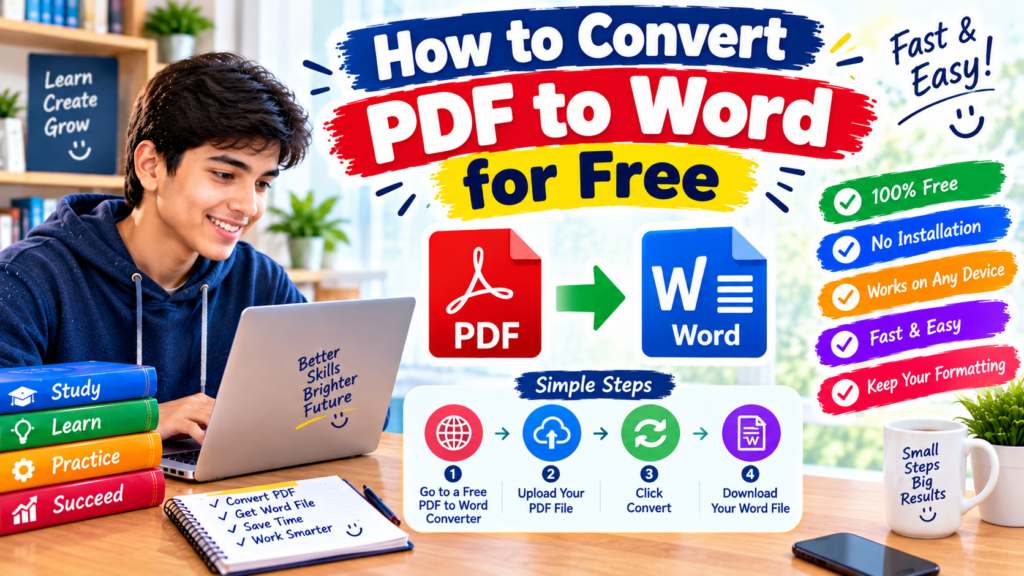
Fortunately, there are several ways to convert PDF to Word for free. You can use Microsoft Word if it’s already available on your computer, try an online converter, or use Google Docs to turn a PDF into an editable document. Some methods even work on a mobile phone.
The important thing is choosing the right method for your file. A simple PDF containing ordinary text is usually easier to convert than a scanned document filled with tables, pictures, and unusual formatting.
In this guide, you’ll learn five practical ways to convert PDF to Word, how to handle scanned files, and what to do when the converted document doesn’t look exactly like the original.
What Happens When You Convert a PDF to Word?
A PDF is designed to preserve a document’s appearance across different devices. A Word document, usually saved with the .docx extension, is designed for editing.
When you convert a PDF into a Word document, the conversion tool attempts to identify the text, headings, images, tables, and other elements and recreate them in an editable format.
For example, suppose you receive a PDF containing a school worksheet. Converting it to Word may allow you to change the questions, add notes, correct spelling mistakes, or adjust the headings.
However, conversion doesn’t always reproduce the original layout perfectly. Text may move, tables may become disorganized, and scanned pages may require additional processing.
Understanding these limitations will help you choose the right tool and avoid wasting time.
1. Convert PDF to Word Using Microsoft Word
Best for: People who already have Microsoft Word installed or have access to it through school or work.
If Microsoft Word is already available on your computer, try this method first. Word can open many PDF files and attempt to convert them into editable documents.
According to Microsoft’s support documentation, this process generally works best with PDFs that contain mostly text. Complex layouts may not convert exactly as they appear in the original file.
Step-by-step instructions
- Open Microsoft Word on your Windows computer.
- Click File and select Open.
- Browse your computer and choose the PDF file.
- If Word displays a message explaining that it will convert the PDF, select OK.
- Wait for the document to open.
- Review the text, headings, tables, and images.
- Select File → Save As.
- Choose Word Document (.docx) as the file format.
- Save the document with a new filename.
Your PDF should now be available as an editable Word document if the conversion succeeds.
Does Microsoft Word offer a free option?
That depends on your access. Some students and workers already have a Word license through their school or organization. Others may need to purchase a subscription or use another solution.
If you don’t have access to the desktop version, consider Google Docs or an online converter instead.
Practical tip: Never overwrite your original PDF. Save the converted file separately so you can compare both versions if the formatting changes.
You can read Microsoft’s official instructions here:
Open PDFs in Word — Microsoft Support
2. Convert PDF to Word Online Using Adobe Acrobat
Best for: People who want to convert a document directly through a web browser.
Adobe Acrobat provides an online PDF-to-Word converter. You can use it without installing the desktop application, which is convenient if you only need to convert a file occasionally.
Step-by-step instructions
- Open Chrome, Edge, Safari, or another browser.
- Visit the Adobe Acrobat PDF to Word converter.
- Choose the option to select or upload your PDF.
- Find the file on your device and upload it.
- Wait while the service processes the document.
- Download the resulting Word file when the download option appears.
- Open the
.docxfile in a compatible word processor. - Check the document carefully before using it.
The exact buttons and options may change as the website is updated.
What makes this method useful?
You don’t need to install a separate converter, and the process is relatively straightforward for ordinary text-based PDFs.
For example, if a colleague sends you a short document that needs a few spelling corrections, an online converter may save you from recreating the text manually.
However, free access may come with limits, and some features may require signing in or purchasing a subscription. Check the current options before uploading a large batch of files.
A useful lesson
Don’t assume that a downloaded file is ready to use immediately. Open it and compare it with the original PDF. Pay special attention to page breaks, tables, and images.
For an ordinary document, minor changes may be easy to fix. For a complicated brochure or form, another conversion method may produce a better result.
3. Convert PDF to Word Using Google Drive and Google Docs
Best for: Students and people who already use Google services.
Google Drive and Google Docs provide another option for working with PDFs. Google Docs can sometimes extract text from a PDF and turn it into an editable document. You can then download that document in Word format.
This method is especially useful when you don’t have Microsoft Word installed.
Step-by-step instructions
- Open Google Drive.
- Sign in to your Google account.
- Click New and choose the file-upload option.
- Select the PDF from your computer.
- After the upload finishes, locate the PDF in Drive.
- Right-click the file and select Open with → Google Docs, if the option is available.
- Wait for Google Docs to process the document.
- Review the text and correct any formatting issues.
- In Google Docs, select File → Download → Microsoft Word (.docx).
- Open the downloaded file and check the result.
Google provides further guidance on converting PDF and image files into text:
Convert PDF and image files to text — Google Drive Help
When should you use Google Docs?
This method can be useful for simple documents, study notes, and text-heavy reading materials.
Imagine you have a PDF containing several pages of class notes. You want to change a heading and add a few explanations. If Google Docs extracts the text successfully, you can make those changes and download a Word copy.
What are the limitations?
The original layout may not be preserved perfectly. Tables, columns, images, and decorative elements can move or disappear. Scanned documents may also produce errors if the text is unclear.
If the PDF contains sensitive personal information, consider the privacy implications before uploading it to an online service.
4. Convert PDF to Word on a Mobile Phone
Best for: People who need to convert a document without using a laptop.
You don’t always need a computer to convert a PDF. Depending on your phone and the document, a browser-based converter may work on Android or iPhone.
This is useful when someone sends you a PDF through email or a messaging app and you need to make a quick change.
Method A: Use an online converter
- Open Chrome or another browser on your phone.
- Visit Adobe Acrobat’s online PDF-to-Word tool or another reputable converter.
- Tap the file-selection button.
- Select the PDF from your phone’s storage.
- Start the conversion.
- Download the Word file when it’s ready.
- Open the file in a compatible document app.
- Review the text and formatting.
On Android, the file will often appear in the Downloads folder. On an iPhone, check the Files app or your browser’s download location.
Method B: Use Google Drive and Google Docs
If you already use Google Drive, upload your PDF and try opening it with Google Docs. If the text is converted successfully, download it as a Word document where that option is available.
Mobile menus can differ from desktop menus, so a laptop may be easier for long documents.
Common mobile problem
Sometimes the file downloads successfully but won’t open when you tap it. This doesn’t necessarily mean the conversion failed.
Check whether the filename ends in .docx and open it with an app that supports Word documents. If the file appears incomplete, try downloading it again.
Also, check your Downloads folder before repeating the process. Otherwise, you may end up with several copies of the same document.
5. Use LibreOffice for Offline Document Work
Best for: People who prefer free desktop software and want to avoid uploading documents to an online converter.
LibreOffice is a free, open-source office suite that includes Writer, a word processor, and Draw, a tool that can open and edit many PDF files.
It is important to understand that LibreOffice does not always offer the same simple, one-click PDF-to-Word workflow as a dedicated converter. A PDF opened in Draw may consist of separate text boxes and objects rather than ordinary word-processing paragraphs.
How to use LibreOffice
- Visit the official LibreOffice website.
- Download and install the software.
- Open LibreOffice Draw.
- Select File → Open and choose your PDF.
- Check whether the text and other elements are editable.
- Make any necessary changes if the layout is manageable.
- If you need a Word document, you may have to copy or reconstruct the content in LibreOffice Writer.
- In Writer, select File → Save As.
- Choose the
.docxformat if you need a Microsoft Word-compatible file.
Is LibreOffice the right choice?
It can be useful if you want offline document tools and already work with LibreOffice. However, a complicated PDF may require significant manual editing.
For a simple conversion, Microsoft Word, Google Docs, or a dedicated online converter may be more convenient.
Which PDF-to-Word Method Is Best?
The best method depends on your device, the kind of PDF you have, and whether you want to work online or offline.
| Method | Best for | Main limitation |
|---|---|---|
| Microsoft Word | Text-based PDFs on a computer | Desktop access may require a license |
| Adobe Acrobat online | Quick browser-based conversion | Free access and features may be limited |
| Google Drive and Docs | Students and Google users | Layout may change during conversion |
| Mobile browser converter | Occasional phone conversions | Editing can be less convenient on a small screen |
| LibreOffice | Offline document work | PDF layouts may need manual reconstruction |
For most beginners, start with a tool you already have access to. If you have Microsoft Word, try opening the PDF directly. Otherwise, test Google Docs or a reputable online converter with a simple document.
How to Convert a Scanned PDF to Word
A scanned PDF can be more difficult to convert than a regular PDF.
The reason is simple: a scanned document may contain pictures of printed pages instead of actual text. Although you can see the words on the screen, the computer may not recognize them as editable text.
To solve this problem, you usually need OCR, which stands for optical character recognition. OCR software analyzes an image and attempts to identify its letters and words.
How to tell whether a PDF is scanned
Open the PDF and try to select a sentence with your mouse or finger.
- If you can select individual words, the file probably contains a text layer.
- If you can only select the entire page as an image, it may be scanned.
- If some text is selectable but other parts are not, the PDF may contain both text and images.
These checks are useful clues, although they are not definitive.
Steps for converting a scanned document
- Choose a converter that explicitly supports OCR.
- Upload a clear, correctly oriented scan.
- Select the correct language if the tool provides that option.
- Start the conversion.
- Review the resulting text for missing words and incorrect characters.
- Compare important details with the original PDF.
- Save the corrected document as a Word file.
For example, OCR can help turn scanned lecture notes into editable text. But if the scan is blurry, tilted, or difficult to read, the software may recognize some words incorrectly.
Always check names, dates, mathematical symbols, and numbers before relying on the converted document.
Why Does PDF Formatting Change After Conversion?
One of the most frustrating parts of PDF conversion is opening the Word document and finding that the text has shifted.
This happens because PDF files preserve a fixed layout, while Word documents rearrange text as you edit. A converter has to interpret the original layout and recreate it in a different format.
Here are common problems and ways to fix them.
1. Text moves onto another page
A paragraph that originally fitted on one page may move to the next.
How to fix it: Check the page size, margins, font size, and paragraph spacing. Small adjustments may restore a more readable layout.
2. Tables become disorganized
Columns may stop lining up, or the table may turn into separate lines of text.
How to fix it: For a small table, rebuilding it with Word’s table tool may be quicker than correcting every cell. For a large table, try another converter first.
3. Images appear in the wrong place
Pictures may move between paragraphs or overlap with text.
How to fix it: Review the image’s positioning and text-wrapping settings. Complex layouts may require manual adjustments.
4. Special characters look incorrect
Mathematical symbols, accented letters, or text from some writing systems may not convert properly.
How to fix it: Check the original document and use a font that supports the required characters. Review formulas and names carefully.
5. The converted file is still not editable
If the PDF contains only scanned page images, a standard converter may leave the text uneditable.
How to fix it: Use a tool with OCR support and check the result before editing.
Common Mistakes to Avoid
A few simple precautions can save time and help protect your documents.
Mistake 1: Expecting perfect formatting.
Even good conversion tools can struggle with complicated layouts. Always inspect the result before submitting or sharing it.
Mistake 2: Uploading sensitive files without checking privacy.
Online converters process files outside your device. For confidential documents, consider an offline option and review the service’s privacy terms before uploading anything.
Mistake 3: Replacing your original PDF.
Keep the original file and save the converted document under a different name. This gives you a reference if the conversion introduces errors.
Mistake 4: Ignoring OCR mistakes.
OCR may confuse similar-looking characters or miss words. Proofread the converted document, especially if it contains important details.
Mistake 5: Downloading tools from suspicious websites.
Use official software websites and avoid unknown downloads or unnecessary browser extensions. A basic PDF conversion should not require unrelated permissions.
Mistake 6: Assuming every free tool is unlimited.
Some services restrict file sizes, conversion counts, or advanced features. Check the current terms before converting many documents.
Real-Life Situations Where PDF-to-Word Conversion Helps
Students and assignments
A student receives a text-based worksheet as a PDF and wants to add notes or correct a heading. Converting it to Word may make those changes easier than recreating the entire document.
Always follow school rules about modifying and submitting course materials.
Teachers and worksheets
A teacher wants to update an old worksheet but only has the PDF version. Conversion may help if the worksheet mostly contains text and simple formatting.
Freelancers and proofreading
A client sends a document that needs proofreading. A Word version can make it easier to suggest corrections, edit paragraphs, and review the text.
Small businesses
A business owner wants to update a simple information sheet. Converting the PDF may save time, but the final file should be reviewed before being sent to customers.
In each situation, conversion can reduce repetitive work. However, checking the output remains an important part of the process.
Frequently Asked Questions
Can I convert PDF to Word for free without installing software?
Yes. Browser-based tools such as Adobe Acrobat’s online converter let you convert files without installing a desktop application. Free usage limits or sign-in requirements may apply.
Can I convert PDF to Word without Microsoft Word?
Yes. You can try Google Drive and Google Docs or use a reputable online conversion service. You don’t need to own Microsoft Word just to create a .docx file, although you will need a compatible app to edit it.
Can I convert a PDF on my Android phone?
Yes. A mobile browser can access online converters, and Google tools may also help. The exact process depends on the apps and features available on your device.
Will the original formatting stay the same?
Not always. Simple documents generally convert more cleanly than PDFs containing complex tables, multiple columns, unusual fonts, or lots of images.
Can I convert a scanned PDF into editable text?
Yes, if you use a converter with OCR support. The quality of the result depends on the clarity of the scan and the language being recognized.
Is an online PDF converter safe?
Safety depends on the provider and the file you upload. Review the service’s privacy and security information before uploading documents, especially if they contain personal or confidential information.
Which file format should I select?
For most modern word processors, .docx is a practical choice because it supports editable text and formatting. Keep the original PDF as a reference.
Final Thoughts
Converting a PDF to Word doesn’t have to be difficult or expensive. If Microsoft Word is available on your computer, try opening the PDF directly. If you prefer to work online, Adobe Acrobat or Google Docs may be convenient alternatives. LibreOffice is worth considering if you prefer free desktop software.
The most important step comes after conversion: check the document before using it. Review the text, tables, images, page breaks, and important numbers, especially when the file matters.
Start with a simple PDF, choose a method that suits your device, and save the converted file separately. Once you understand the basic process, many everyday PDF-to-Word tasks become much easier.