
Imagine your teacher sends you a homework assignment, but you cannot find the worksheet. You check your messages, look through your downloads, and finally realize that the deadline is only a few hours away. It is a frustrating situation, especially when you are trying to keep up with several subjects at once.
This is where Google Classroom can make schoolwork easier to manage. Instead of searching through different messages and files, students can use one place to access class materials, check assignments, submit homework, and review teacher feedback.
If you have never used Google Classroom before, there is no need to worry. The basic features are fairly straightforward once you know where to look.
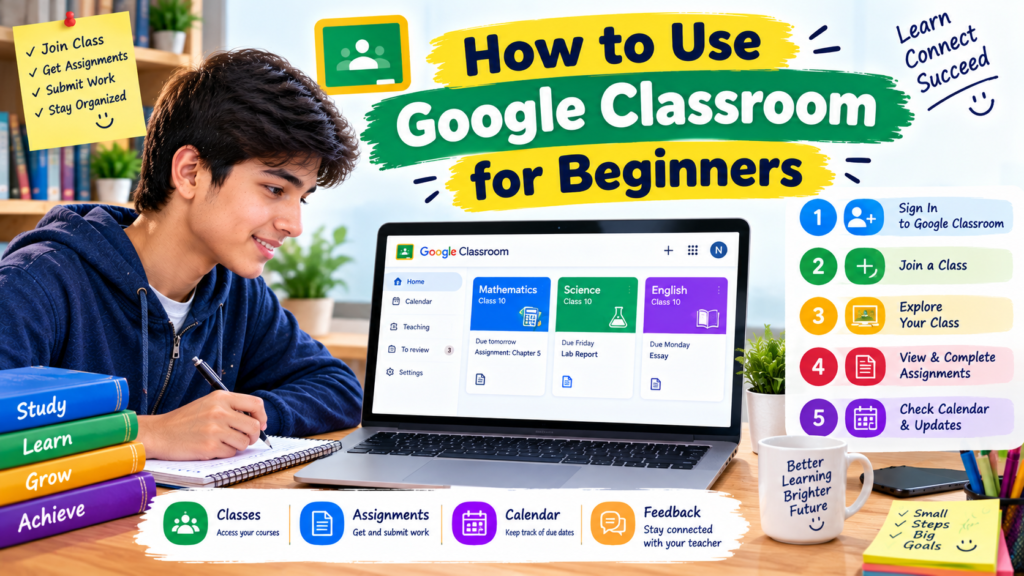
In this guide, you will learn how to use Google Classroom for beginners, from signing in and joining a class to submitting assignments and checking grades. You will also find practical tips for avoiding common mistakes.
What Is Google Classroom?
Google Classroom is an online learning platform from Google. Teachers use it to share learning materials, organize assignments, communicate with students, and provide feedback.
Students can use it through a web browser on a computer or through the Google Classroom app on a compatible smartphone or tablet.
It also works with other Google tools, including Google Docs, Google Drive, Google Slides, Google Forms, and Google Meet. For example, a teacher might share a worksheet through Classroom, ask students to complete it in Google Docs, and then collect the finished work through the same class page.
Google Classroom is not a replacement for learning or communicating with your teacher. Think of it as a central place where your classwork is organized.
What Do You Need Before Getting Started?
You do not need an expensive computer or special software to begin. A few basic things are enough.
- A device: A laptop, desktop computer, smartphone, or tablet.
- An internet connection: You will need internet access for most Classroom activities.
- A Google account: You may use a personal Google account or an account provided by your school, depending on your school’s setup.
- A class invitation or code: If you are a student, your teacher may provide a class code, invitation link, or email invitation.
One important detail: some schools manage Google Classroom through Google Workspace for Education. In that case, your school account may be required, and certain features may be controlled by the school’s administrator.
Step 1: Open Google Classroom and Sign In
The first step is to access the platform.
- Open Google Chrome, Microsoft Edge, Firefox, or another supported browser.
- Visit Google Classroom.
- Select the option to sign in if prompted.
- Enter your Google account email address and password.
- If you have more than one Google account, make sure you select the account your teacher expects you to use.
After signing in, you should reach the Classroom home page. If you have already joined classes, they should appear there.
A common beginner mistake: Students sometimes sign in with a personal Gmail account when their school requires a school account. The class may not appear, even when the login works correctly.
If you cannot find your class, check which account is active before assuming that the invitation or class code is incorrect.
Step 2: Join a Class
You generally need to join a class before you can access its assignments and learning materials.
Your teacher may give you a class code, send an invitation link, or invite you through email.
How to join with a class code
- Open Google Classroom and sign in.
- Look for the plus sign or the option to join a class.
- Select Join class.
- Enter the class code provided by your teacher.
- Select the option to join.
Once you have joined successfully, the class should appear on your Classroom home page.
What if your teacher sends an invitation?
Open the invitation link or email and follow the instructions to join the class. If you are signed in to the wrong Google account, switch to the correct one first.
Never guess a class code or use a code that belongs to another student. Ask your teacher for the correct invitation if you have not received one.
For more help, visit the official Google Classroom student guide.
Step 3: Understand the Main Parts of Google Classroom
When you open a class, you will see different sections. Their appearance may vary slightly depending on the device and version you use, but the main ideas remain similar.
The Stream
The Stream works like a class noticeboard. Teachers may post announcements, reminders, and updates about upcoming work.
For example, your science teacher might announce that a test has been moved to Friday. Checking the Stream regularly can help you avoid missing important information.
Classwork
This is one of the most useful sections for students. It contains assignments, questions, learning materials, and other activities shared by the teacher.
If you want to find a mathematics worksheet or an English writing task, start by checking Classwork.
People
The People section can show the teacher and classmates associated with the class, depending on the account settings.
It helps you confirm that you have joined the correct class.
Grades
If your teacher uses the grading features, you may be able to see your assignment scores and feedback in the Grades section.
Not every class uses the same grading setup, so the information available can differ from one school to another.
Learning these sections first makes Google Classroom much easier to navigate. You do not have to explore every feature on your first day.
Step 4: Find Your Assignments
Now that you have joined a class, it is time to find your work.
Suppose your English teacher asks you to write a short essay about environmental protection. The assignment might include instructions, a due date, and a link to a Google Docs file.
Here is how to find it:
- Open the relevant class.
- Select Classwork.
- Look through the available assignments and topics.
- Open the assignment you need.
- Read the instructions carefully.
- Check the due date and any attached files.
Some teachers organize their work under topics such as Homework, Weekly Lessons, Projects, or Revision. Others may leave assignments in a simpler list.
Pay attention to the teacher’s instructions before starting. An assignment might require a written answer, a presentation, a completed form, or an uploaded file.
It is also helpful to check the home page for upcoming work and use the Classroom calendar when it is available.
Step 5: Complete an Assignment Using Google Docs
Google Classroom often works together with Google Docs, which is a word-processing tool similar to Microsoft Word.
Imagine that your teacher asks you to write a 500-word report. Instead of writing it in a separate document and struggling to upload it later, you may be able to work directly in the file attached to the assignment.
Follow these steps:
- Open the assignment in Classwork.
- Check whether your teacher has attached a Google Docs file.
- Open the file and read the instructions again.
- Type your answers or write your report.
- Give the document a clear title if needed.
- Review your work for spelling mistakes and missing information.
- Return to the assignment page when you are ready to submit.
Google Docs saves changes automatically when you are online and signed in, although you should still confirm that your latest changes have been saved before leaving.
Practical tip: Use a clear filename, such as Science_Project_Chapter_3, rather than leaving several documents with names like “Untitled document.” Clear filenames make it easier to find the right file later.
Also, do not assume that finishing a document means the assignment has been submitted. In many cases, you must return to Classroom and select the submission option separately.
Step 6: Submit Your Homework Correctly
This is one of the most important things beginners need to understand.
Completing an assignment and submitting it are two different actions. If you forget the second step, your teacher may still see the work as unsubmitted.
The exact process depends on how the assignment was created, but a common method is:
- Open your class and select Classwork.
- Choose the assignment you have completed.
- Review the attached file or upload your finished work.
- If necessary, select Add or create to attach a document or another supported file.
- Make sure the correct file is attached.
- Select Turn in or the equivalent submission option shown on the page.
- Confirm the submission if Classroom asks you to do so.
- Check the assignment status afterward.
Depending on the assignment, you may be able to submit a Google Docs file, a PDF, an image, or another supported file type.
If you are using a smartphone, the button names and layout may look a little different. Follow the options shown in your version of the app.
How to know whether your assignment was submitted
Return to the assignment and check its status. It should indicate that the work has been turned in or submitted.
If the status still shows as assigned or missing, do not assume your teacher received the file. Open the assignment again and check whether you completed the final submission step.
You can find additional instructions in Google’s official guide to getting started with Classroom.
Step 7: Use Google Classroom on Your Phone
You do not always need a laptop to manage your schoolwork. Google Classroom has a mobile app for compatible Android and iOS devices.
For students who use a phone for most of their online activities, the app can be a convenient way to check announcements, open assignments, and keep track of upcoming deadlines.
Here is a simple way to get started:
- Open the official app store on your device.
- Search for Google Classroom.
- Check that the app is published by Google.
- Install and open it.
- Sign in with the correct Google account.
- Open a class to view its announcements and classwork.
You can also open Google Classroom in your phone’s web browser if that works better for you.
Is the mobile app enough?
For everyday tasks, it may be. You can often read instructions, review materials, and submit work from a phone.
However, a laptop or desktop may be more comfortable for long essays, spreadsheets, detailed presentations, and assignments that require several files.
A practical approach is to use your phone for quick checks and reminders, then use a larger screen when the assignment requires more detailed work.
Remember that mobile data costs, internet speed, and device storage can affect your experience. If your connection is limited, download or open learning materials when you have a suitable connection, where the available features allow it.
Step 8: Check Teacher Feedback and Grades
Submitting your work is not the end of the learning process. Teacher feedback can help you understand what you did well and what you should improve next time.
When your teacher grades and returns an assignment, open the assignment to review the score and any comments.
For example, your teacher might point out that your essay has a strong introduction but needs clearer supporting examples. You can use that feedback when writing your next essay.
To check your results:
- Open the relevant class.
- Look for the assignment you submitted.
- Open it to review its status and any available grade.
- Read the teacher’s comments.
- If the teacher has returned a document with suggestions, open that file too.
A grade may not appear immediately after submission. Your teacher may need time to review the work, and some assignments may not use grades at all.
If a score seems incorrect or you do not understand a comment, ask your teacher politely for clarification instead of assuming something went wrong.
Step 9: Communicate With Your Teacher
Sometimes the instructions are confusing, a file will not open, or you need to explain a problem with your submission.
Google Classroom may offer class comments, private comments, or email options, depending on the class settings and your account permissions.
Use the option that fits the situation.
- Class comment: Useful when your teacher allows questions that are relevant to the whole class.
- Private comment: Useful for a question about your own assignment or submission.
- Email: Useful when your teacher asks you to contact them by email or when that is the available communication method.
Keep your message polite and specific.
For example, instead of writing “It is not working,” explain which assignment you opened, what happened, and whether you were using a phone or computer.
Do not share your password or other private account information in a class comment or message. Your teacher should not need your password to help with an assignment.
Step 10: Stay Organized and Avoid Missing Deadlines
Google Classroom can put your classwork in one place, but it cannot automatically manage every part of your study routine for you.
A small daily habit can make a noticeable difference.
Try this simple routine:
At the start of the day: Open Classroom and check announcements and upcoming assignments.
When you begin studying: Open the instructions and note the due date before starting your work.
After finishing an assignment: Review your answers, attach the correct file, and confirm submission.
Before ending your study session: Check whether any work remains incomplete.
You can also use Google Calendar, your phone’s calendar, or a paper planner to record important deadlines. Choose whichever method you are most likely to use consistently.
For example, if you have a mathematics worksheet due on Wednesday and a history presentation due on Friday, writing both dates in one planner makes it easier to decide what to work on first.
The goal is not to create a complicated productivity system. It is simply to avoid discovering an unfinished assignment at the last minute.
Common Google Classroom Mistakes Beginners Should Avoid
Even though the platform is straightforward, a few small mistakes can create unnecessary stress.
1. Using the wrong Google account
If a class is missing, check whether you signed in with the account your teacher invited. Schools may require students to use their school-managed accounts.
2. Forgetting to turn in the assignment
A completed document is not necessarily a submitted assignment. Always return to Classroom and confirm the status.
3. Uploading the wrong file
Before submitting, open the attachment list and check the filename. If you have several similar documents, make sure you selected the final version.
4. Ignoring the due date
Read the due date and time carefully. Do not rely only on memory or assume that every assignment is due at the end of the day.
5. Skipping the instructions
Teachers may specify a word count, file format, number of slides, or particular questions to answer. Read the complete instructions before beginning.
6. Assuming every assignment receives an immediate grade
Some teachers return work quickly, while others need more time. An assignment that has been submitted but not graded is not automatically a problem.
7. Ignoring announcements
Important changes may appear in the Stream. Check announcements regularly, especially when a teacher updates a deadline or shares new learning materials.
8. Relying entirely on phone notifications
Notifications can be useful, but they may be disabled, delayed, or missed. Open Classroom directly when you need to verify an assignment’s status.
Practical Ways to Make Google Classroom Easier to Use
Once you understand the basics, a few simple habits can improve your experience.
Use one main account for schoolwork. If your school requires a particular account, use it consistently so your classes and assignments are easier to find.
Keep files organized in Google Drive. Use clear filenames and sensible folders where appropriate. This can help when you need to locate a project or review older work.
Read feedback before starting another assignment. Teachers’ comments often reveal recurring mistakes you can correct.
Ask questions early. If an instruction is unclear, ask for help before the deadline rather than waiting until the last minute.
Keep your account secure. Use a strong password, do not share it with classmates, and sign out of shared computers when you finish.
Check accessibility options. If you find reading or navigating the platform difficult, explore the accessibility features available on your device and in the Google tools you use.
These habits are useful whether you are studying in a classroom, completing homework at home, or taking an online course.
Frequently Asked Questions About Google Classroom
Is Google Classroom free to use?
Google Classroom is available through eligible Google accounts, including many school-managed Google Workspace for Education accounts. The available features and access arrangements depend on the account and the institution’s setup. Check with your school if you are unsure which account you should use.
Can I use Google Classroom without a laptop?
Yes. You can access Classroom using a compatible smartphone or tablet through the mobile app or a web browser. Some tasks, particularly lengthy writing and detailed presentations, may be easier on a computer.
Can I join Google Classroom without a class code?
Yes, in some cases. A teacher may invite you by email or share a class invitation link. Follow the invitation provided by your teacher.
Why can’t I see my assignment?
Check that you opened the correct class and signed in with the right Google account. Then look under Classwork and check whether your teacher has posted the assignment. If it is still missing, ask your teacher.
Can teachers see whether I submitted an assignment?
Teachers can generally view assignment submission status through Classroom. They may also be able to review the submitted file and provide feedback, depending on the assignment and account settings.
Can I edit an assignment after submitting it?
In some cases, Classroom allows you to unsubmit work and make changes before turning it in again. Whether this is possible can depend on the assignment settings and deadline. Check the options available on your assignment page and follow your teacher’s instructions.
Does Google Classroom work with Google Docs?
Yes. Teachers can attach Google Docs files to assignments, and students can use Docs to complete written work. Classroom also works with other Google tools, including Drive, Slides, Forms, and, where available, Meet.
Final Thoughts
Learning how to use Google Classroom does not have to be difficult. Start with the basics: sign in with the right account, join your class, check Classwork for assignments, and read the instructions before beginning.
Once you finish your work, remember to submit it and check that Classroom shows the correct status. Make it a habit to review announcements, deadlines, and teacher feedback so you can keep your schoolwork organized.
You do not need to master every feature on your first day. Learn one task at a time, ask your teacher when something is unclear, and build a routine that works for you.
With regular use, Google Classroom can become a helpful place to manage your learning materials and keep track of your assignments.