
You have an assignment due tomorrow. Your research is finished, your main points are ready, but there is one problem: you still need to create a presentation.
You open PowerPoint, choose a blank slide, and start adjusting the title. Twenty minutes later, you are still choosing fonts, searching for pictures, and trying to make the first slide look good.
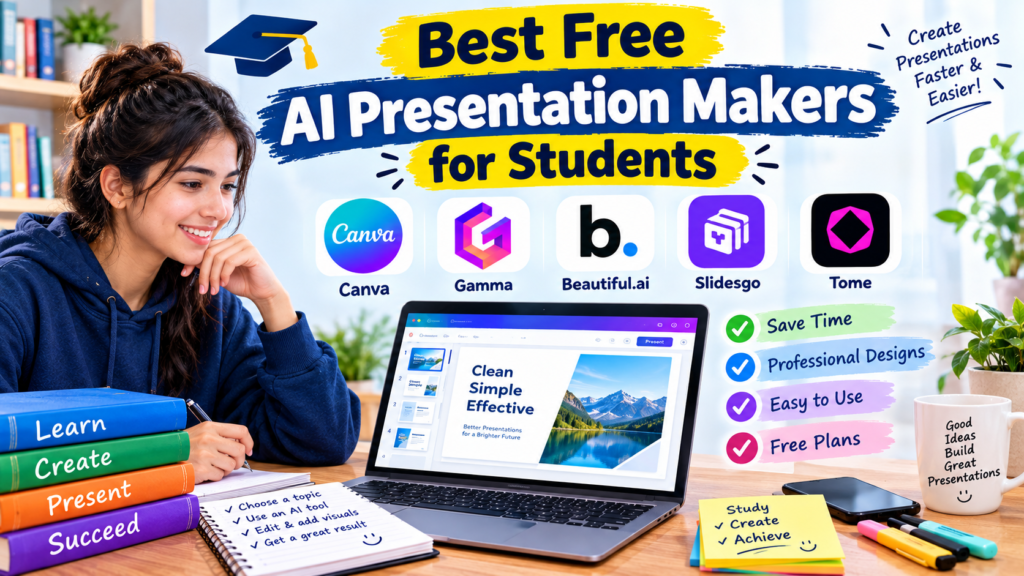
If this sounds familiar, free AI presentation makers can save you a lot of time.
These tools can help you turn a topic, an outline, or a set of notes into a presentation with organized slides, suggested layouts, and visual elements. Some also help you rewrite long paragraphs into shorter points that are easier to present in class.
The best part is that you do not need to be a professional designer to use them. Many tools offer free plans or free presentation features that students can try before paying for anything.
However, not every AI-generated presentation is ready to submit. Some tools create slides that look attractive but contain inaccurate information, too much text, or images that do not match the subject.
In this guide, we will explore the best free AI presentation makers for students in 2026, explain what each tool does well, and show you how to create a clear presentation without spending hours designing every slide.
What Is an AI Presentation Maker?
An AI presentation maker is a tool that uses artificial intelligence to help create or organize presentation slides.
Depending on the application, you can enter a topic, provide an outline, upload supported material, or describe the type of presentation you need. The tool may then suggest slide titles, draft content, arrange layouts, or recommend visuals.
For example, imagine your teacher asks you to prepare a presentation about renewable energy.
Instead of creating every slide from scratch, you can use an AI tool to suggest a structure covering solar power, wind energy, environmental benefits, challenges, and future developments.
You can review the proposed content, correct mistakes, add examples from your research, and adjust the design to suit your assignment.
AI can handle some of the repetitive work, but you should still decide what the audience needs to learn.
1. Canva — Best for Attractive Student Presentations
<AsyncImage query=”Canva presentation editor student school project slides modern templates” aspectRatio=”16:9″ width=”100%”/>
Canva is a popular design platform that makes it easy to create presentations, posters, infographics, and other visual projects.
It is a particularly useful starting point for students who want their slides to look organized without learning complicated design software.
Canva provides presentation templates, drag-and-drop editing, image libraries, and AI-assisted features. The availability and usage limits of its AI tools depend on the current plan.
What makes Canva useful?
Suppose you need to create a presentation about the human digestive system.
You can start with a presentation template, choose a suitable layout, and arrange your content into sections covering the major organs, the digestive process, and important facts.
Canva’s design tools help you add diagrams, icons, images, and consistent headings.
You can also explore available AI features to help generate initial content or design ideas.
How students can use Canva
- Open Canva.
- Search for presentation templates.
- Choose a design that suits your topic.
- Prepare an outline for your slides.
- Add your content and relevant visuals.
- Review the presentation and export it in a suitable format.
A practical tip
Do not choose a template simply because it looks impressive. A design with animated backgrounds, decorative fonts, and several colors might distract from a science or history lesson.
Choose a layout that makes your information easy to read.
Free-plan note: Canva offers free design capabilities, but some templates, assets, and AI features may require payment or have usage limits.
2. Gamma — Best for Creating Slides From a Topic or Outline
<AsyncImage query=”Gamma AI presentation maker generated presentation cards editor interface” aspectRatio=”16:9″ width=”100%”/>
Gamma is an AI-powered content creation platform that can help turn an idea or outline into a structured presentation.
It is worth considering when you have limited time and want a starting draft rather than building every slide manually.
How Gamma works
Imagine your assignment is about the advantages and disadvantages of online education.
You provide the topic and explain the type of audience you are addressing. Gamma can generate a proposed structure and presentation content that you can review and edit.
Instead of beginning with a completely blank slide, you get a draft containing organized sections and visual layouts.
What students may like about it
- Helps organize a presentation around a central topic.
- Can produce an initial slide structure.
- Offers editing and layout options.
- Can be useful for classroom projects and short presentations.
Where you need to be careful
AI-generated slides may contain generic statements, unsupported claims, or more information than you need.
For example, a presentation about online education should not simply repeat that technology makes learning easier. It should explain specific benefits, such as access to recorded lessons, and discuss challenges, such as internet availability.
Add evidence, examples, and relevant sources to make the presentation more useful.
Free-plan note: Gamma has offered a free tier with limits on AI usage and other features. Check its current pricing page for the latest terms.
Website: https://gamma.app/
3. Microsoft PowerPoint — Best for Students Who Need a Traditional Slide Deck
<AsyncImage query=”Microsoft PowerPoint presentation editor clean educational slides laptop screen” aspectRatio=”16:9″ width=”100%”/>
PowerPoint remains a practical choice for school, college, and university presentations.
It provides familiar slide editing tools, themes, charts, diagrams, and presentation controls. Depending on your account, you may also have access to AI-assisted features through Microsoft Copilot or other supported integrations.
Why PowerPoint is worth considering
Some teachers require students to submit a PowerPoint file or present directly from a classroom computer.
Using PowerPoint makes it easier to work with the standard slide format and adjust the final presentation to match the assignment requirements.
Suppose you are preparing a presentation about computer networks. You can organize the slides into an introduction, network types, hardware components, examples, and a final review.
Add a diagram showing how devices connect to a network, then use short bullet points to explain the important ideas.
A useful workflow
- Write a short outline of your topic.
- Create a slide for each major section.
- Use a consistent theme.
- Add diagrams or charts where they improve understanding.
- Review the presentation in slideshow mode.
If AI features are available through your account, use them to help draft content or organize ideas.
Free-plan note: PowerPoint’s web version offers free access to basic presentation features with a Microsoft account in supported circumstances. Advanced AI capabilities may require an eligible paid subscription.
Website: https://www.microsoft.com/microsoft-365/powerpoint
4. Google Slides — Best for Group Projects
<AsyncImage query=”Google Slides presentation editor collaborative student group project interface” aspectRatio=”16:9″ width=”100%”/>
Google Slides is a browser-based presentation tool that is especially useful when several students are working on the same assignment.
You can create slides, edit text, add images, and collaborate with classmates without passing presentation files back and forth.
Some Google accounts may also have access to Gemini-powered features, depending on the account, region, and subscription.
How it helps with group presentations
Imagine four students need to prepare a presentation about environmental pollution.
One student researches air pollution, another covers water pollution, a third collects information about waste, and the fourth organizes the solutions.
With Google Slides, each student can contribute to the shared presentation. The group can review the content, standardize the design, and remove repeated points before presenting.
Useful features
- Browser-based editing.
- Shared documents and collaboration.
- Presentation templates and themes.
- Easy organization of slides.
- Integration with other Google services.
What about AI?
Google Slides is not itself an unlimited free AI presentation generator. Some AI-assisted features may require a qualifying Google plan.
You can still use a separate AI assistant to develop an outline and then build the slides in Google Slides.
Website: https://slides.google.com/
5. Beautiful.ai — Best for Consistent Slide Layouts
<AsyncImage query=”Beautiful.ai presentation design software professional education slides layout editor” aspectRatio=”16:9″ width=”100%”/>
Beautiful.ai focuses on presentation design and layouts that help keep slides visually consistent.
It can be useful for students who struggle with spacing, alignment, and arranging text with images.
For example, suppose you are preparing a presentation comparing traditional education with online learning.
You might need a comparison slide with two columns, a slide containing several statistics, and another showing the advantages and disadvantages of each approach.
A presentation design tool can help you arrange those elements more neatly.
Why consider it?
Good slide design is not only about colors. It also involves spacing, alignment, readable text, and a clear visual hierarchy.
Tools that assist with layout can reduce the time spent adjusting individual elements.
What should you know before signing up?
Beautiful.ai’s available plans and trial arrangements can change. Do not assume that you can create and export a complete presentation for free without checking the current terms.
If you need a tool with a dependable free workflow, compare its current offer with Canva or Google Slides before committing to it.
Website: https://www.beautiful.ai/
6. Pitch — Best for Collaborative Presentations
<AsyncImage query=”Pitch presentation software collaborative editor modern presentation slides interface” aspectRatio=”16:9″ width=”100%”/>
Pitch is a presentation platform with collaboration and design features. It can be useful for students working on group assignments or projects that require several rounds of feedback.
Depending on the current product offering, AI-assisted features may help with drafting content or developing an initial presentation.
A real classroom scenario
Suppose you are preparing a business studies presentation with two classmates.
One person handles the introduction, another explains the business model, and the third covers the market and challenges.
A shared presentation workspace helps the group work on different sections and maintain a consistent design.
You can then review the entire slide deck together to make sure the content flows logically from one section to the next.
What makes it useful?
- Presentation templates.
- Collaborative editing.
- Shared feedback and review.
- Design tools for organizing slides.
Free-plan note: Features and export options depend on Pitch’s current plans. Check the official website before choosing it for an assignment with specific submission requirements.
Website: https://pitch.com/
7. Prezi — Best for Visual Storytelling
<AsyncImage query=”Prezi educational presentation zooming canvas visual storytelling interface” aspectRatio=”16:9″ width=”100%”/>
Prezi offers a presentation style that differs from traditional slide-by-slide decks. Its zooming canvas can help show how different ideas connect.
This approach may work well for subjects where relationships between concepts are important.
For example, a presentation about the solar system could begin with a broad view of the Sun and then explore individual planets.
Similarly, a history presentation could show a timeline and zoom in on particular events.
When should you use Prezi?
Consider it when you want to explain relationships between ideas rather than simply move through a list of separate slides.
However, movement should have a purpose. Too many zoom effects can distract the audience or make some viewers uncomfortable.
Free-plan note: Prezi’s current free access, AI features, and privacy or publishing options may differ by plan. Check the terms before creating a presentation you need to export or keep private.
Website: https://prezi.com/
8. Slidesgo AI Presentation Maker — Best for Template-Based Presentations
<AsyncImage query=”Slidesgo education presentation template colorful school project slides” aspectRatio=”16:9″ width=”100%”/>
Slidesgo is known for presentation templates and educational design resources. Its AI presentation maker can help users develop a presentation from a topic, subject to the current tool’s capabilities and limits.
It can be useful when you need a quick starting point for a school project.
How students can use it
Suppose your assignment is about the importance of healthy eating.
You can explore a suitable template or use an available AI generation feature to prepare an initial structure.
Organize the slides into sections such as food groups, balanced meals, hydration, and healthy habits.
Then check the information against reliable educational or public health sources.
One thing to remember
A colorful template does not guarantee that the presentation is informative.
Review the generated content, replace irrelevant images, and make sure the design suits your subject.
Some templates or features may have attribution requirements, download restrictions, or paid access. Read the applicable terms before submitting or publishing your presentation.
Website: https://slidesgo.com/
9. Adobe Express — Best for Creative Visual Presentations
<AsyncImage query=”Adobe Express presentation design templates education project visual slides editor” aspectRatio=”16:9″ width=”100%”/>
Adobe Express is a design platform for creating graphics, social content, and other visual materials. Its available design and AI features can also be useful when preparing presentation-related content.
It is worth considering if your assignment involves visual storytelling, posters, or a presentation that needs strong graphics.
Example: A presentation about climate change
Start with a simple outline covering the causes of climate change, its effects, and possible responses.
Use Adobe Express to explore visual layouts and create supporting graphics where appropriate.
Choose images and illustrations that genuinely help explain the subject rather than adding decorative elements to every slide.
What should students know?
Free access and AI generation allowances depend on the current plan. Certain assets and advanced features may require a subscription.
Before using generated images or external assets in a public project, review their licensing and usage terms.
Website: https://www.adobe.com/express/
10. SlidesAI — Best for Turning Text Into Slides
<AsyncImage query=”SlidesAI text to presentation generator Google Slides add on presentation editor” aspectRatio=”16:9″ width=”100%”/>
SlidesAI is designed to help turn text into a presentation. Its approach may appeal to students who already have notes but do not want to manually divide every paragraph into slides.
For example, imagine you have prepared a 1,000-word report about renewable energy.
You can condense the report into an outline and use an available text-to-presentation feature to create an initial slide deck.
The generated result should then be edited to fit the time limit and the audience.
How to get a better result
Do not feed the tool a large block of text and expect every detail to fit naturally into slides.
First, organize your material into a handful of major sections. Identify the main point of each section and remove information that is not necessary for the presentation.
Then generate the slides, check the layout, and add relevant diagrams or images.
Free-plan note: SlidesAI’s supported platforms, usage allowances, and pricing may change. Review the current offer to see whether it meets your requirements.
Website: https://www.slidesai.io/
Comparison: Which Free AI Presentation Maker Should You Choose?
Here is a quick way to narrow down your options.
| Tool | Best use | Free access |
|---|---|---|
| Canva | Templates and visual design | Free features available; some items are paid |
| Gamma | Generating a presentation draft | Free tier with limits may be available |
| PowerPoint | Traditional slide decks | Basic web features available |
| Google Slides | Group projects | Basic features available |
| Beautiful.ai | Consistent layouts | Check current plans and trial terms |
| Pitch | Collaborative presentations | Plan-dependent features |
| Prezi | Visual storytelling | Check current free access |
| Slidesgo | Templates and AI-assisted creation | Some free options; limits may apply |
| Adobe Express | Graphics and visual content | Free features available; AI limits may apply |
| SlidesAI | Turning text into slides | Check current plan and usage limits |
Important: A tool can be free to start using without offering unlimited AI generation, unrestricted exports, or every premium template. Confirm the latest pricing and feature restrictions on the official website.
How to Make a Presentation With AI: A Step-by-Step Guide
Knowing which tool to use is only half the task. The quality of the final presentation depends on how you prepare and review the content.
Step 1: Understand the assignment
Before opening an AI presentation maker, write down the topic, audience, time limit, and any instructions from your teacher.
For example, a five-minute presentation about computer networks needs a different level of detail from a 20-minute university seminar.
Check whether you are required to submit a PowerPoint file, a PDF, or a presentation link.
Step 2: Create an outline
Use a general AI assistant to brainstorm a possible structure, or prepare the outline yourself.
For a presentation about renewable energy, your outline might include:
- What renewable energy means.
- Main types of renewable energy.
- Benefits and limitations.
- Real-world examples.
- Final takeaways.
Keep the structure focused on the main question your presentation needs to answer.
Step 3: Check your facts
Before generating the final slides, verify important statistics, scientific claims, and examples.
Use reliable sources such as educational institutions, government publications, scientific organizations, and original research.
Do not assume that an AI-generated statement is correct simply because it sounds convincing.
Step 4: Choose a presentation tool
If visual design matters most, try Canva. If you want an AI-generated draft, consider Gamma or a text-to-presentation tool. If your teacher requires a conventional slide deck, PowerPoint or Google Slides may be a practical choice.
Choose based on the assignment rather than signing up for every available service.
Step 5: Generate your first draft
Provide the topic, audience, approximate number of slides, and desired style.
For example, try this prompt:
“Create an eight-slide educational presentation about renewable energy for high school students. Use simple English, clear slide titles, concise bullet points, and suggestions for relevant diagrams. Cover the main types, benefits, limitations, and real-world examples. Flag any statistics that require verification.”
Treat the result as a draft, not a finished assignment.
Step 6: Edit the content
Read every slide carefully.
Remove repeated points, correct mistakes, replace vague statements with specific examples, and make sure each slide supports the main topic.
If the presentation contains too much text, divide the content into smaller sections or move additional details into your speaking notes.
Step 7: Improve the design
Use readable fonts, consistent colors, and a layout that suits the material.
A science presentation might benefit from diagrams, while a business presentation may need charts and comparisons.
Avoid adding visual effects simply because they are available.
Step 8: Practice before presenting
Open the presentation in slideshow mode and rehearse it.
Check whether the slides are readable, whether the order makes sense, and whether you can explain each point without reading every word.
If you have a strict time limit, use a timer during practice and remove unnecessary details.
Step 9: Export and check the final file
If your teacher requires a PowerPoint or PDF, confirm that the selected tool supports the necessary export option under your plan.
Open the exported file before submitting it. Check for missing fonts, broken layouts, cropped images, or formatting changes.
This final check can prevent problems when the presentation is opened on a different computer.
Common Mistakes Students Should Avoid
1. Putting too much text on each slide
An AI tool may generate complete paragraphs because it is designed to produce written content.
A presentation works differently from an essay. Keep the main points short and explain the details verbally.
2. Trusting generated information without checking it
AI tools can make factual mistakes, create unsupported statistics, or misunderstand the assignment.
Verify important claims before using them in a classroom presentation.
3. Choosing design over clarity
Animations, transitions, and colorful backgrounds can make a presentation look busy without making it more informative.
Use visual effects only when they help the audience understand the material.
4. Using irrelevant images
A picture might look attractive but have little connection to the subject.
Choose visuals that explain a process, show a real example, or help the audience remember a key idea.
5. Ignoring image and template licenses
Check whether an image or template has usage restrictions or attribution requirements, especially if the presentation will be published online.
6. Forgetting to practice
A polished slide deck cannot replace a clear explanation.
Rehearse the presentation, check the timing, and make sure you understand the content well enough to answer questions.
7. Ignoring academic integrity rules
Follow your school’s policies about AI-generated content and disclose assistance when required.
Use AI to support your work, and make sure the final presentation accurately represents your own understanding and contribution.
Frequently Asked Questions
What is the best free AI presentation maker for students?
Canva is a strong starting point for visual design and templates. Gamma is worth exploring if you want to generate an initial presentation draft. Google Slides and PowerPoint are practical choices for editing and presenting conventional slide decks. The best option depends on your assignment and the features currently available for free.
Can AI create a PowerPoint presentation automatically?
Yes. Some AI presentation tools can generate slide content and layouts from a topic or outline. Depending on the service and plan, you may be able to export the result to PowerPoint or another format. Always check the export options and review the generated slides before submitting them.
Are free AI presentation makers really free?
Many offer free features or limited AI generation. However, some restrict the number of presentations you can create, the number of AI credits you receive, or the formats you can export. Read the current pricing details before relying on a particular feature.
Can I use AI-generated slides for a school assignment?
That depends on your teacher’s instructions and your school’s academic integrity policy. Some institutions allow AI for brainstorming and design but restrict generated text. Verify the facts, follow citation requirements, and disclose AI assistance when required.
Which tool is best for group presentations?
Google Slides and Pitch are useful options to consider for collaboration. Both provide workflows for working with other people, although the exact features and access requirements differ.
Do I need a powerful laptop to use these tools?
Usually, no. Many presentation makers run in a web browser, so an ordinary laptop and a stable internet connection are sufficient for basic tasks. Some advanced features may work better on certain devices or require more resources.
Can AI presentation makers work in languages other than English?
Some tools support multiple languages, but their writing and design capabilities vary. Check language support before generating a presentation, and carefully review translations or specialized terminology.
Final Thoughts
The best free AI presentation makers for students can reduce the time spent organizing slides, adjusting layouts, and preparing an initial draft.
If you want an easy design workflow, start with Canva. If you want a generated presentation to edit, explore Gamma or SlidesAI. If you need to collaborate with classmates, consider Google Slides or Pitch.
You do not need to use every tool on this list. Pick one that matches your assignment, prepare a clear outline, and review the result before presenting it.
Most importantly, remember that the goal is not simply to create attractive slides. It is to explain a subject clearly enough that your audience understands it.
Let AI help with the repetitive work, but keep your own judgment, research, and explanation at the center of the presentation.