
Have you ever sat down to study, opened your books, and then spent the next 20 minutes trying to decide what to study first? Maybe you have a mathematics test on Monday, an English assignment due tomorrow, and science notes that you promised yourself you would finish last week.
The problem is not always a lack of motivation. Sometimes, you simply have too many things to remember.
That is where a study planner app can help. Instead of keeping every deadline in your head or writing tasks on random pieces of paper, you can organize your subjects, assignments, revision sessions, and exam dates in one place.
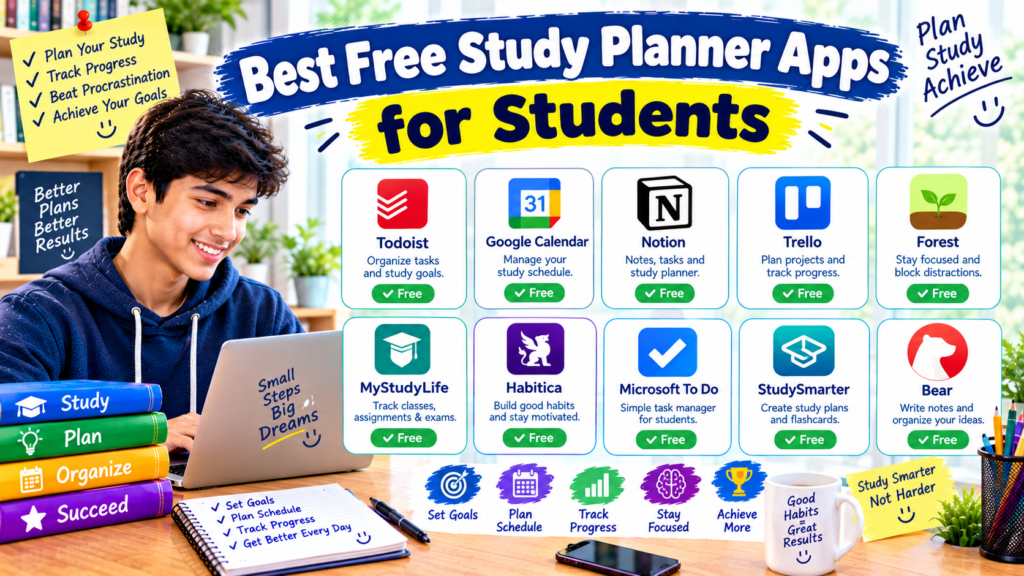
The good news is that you do not need to pay for an expensive productivity app to get started. Several free study planner apps offer useful features for students, whether you study at school, college, or university.
In this guide, we will explore the best free study planner apps for students, explain what each one does well, and help you choose an option that fits your study routine.
What Is a Study Planner App?
A study planner app helps you organize your academic work. Depending on the app, you can create task lists, set reminders, schedule study sessions, track assignment deadlines, and keep your notes organized.
For example, instead of writing “prepare for science” on a to-do list, you could create three smaller tasks:
- Read the chapter on electricity.
- Review the important definitions.
- Complete ten practice questions.
Smaller tasks are easier to understand and schedule. They also make it easier to see what you have completed and what still needs attention.
A useful planner should make studying more organized, not give you another complicated system to manage.
1. Google Calendar — Best for Scheduling Study Sessions
Best for: Students who want a simple timetable with reminders.
Cost: Free for standard personal use.
Works on: Web, Android, and iOS.
Google Calendar is a practical choice if your biggest problem is managing time. It lets you place classes, study sessions, assignments, and exams on a calendar so you can see how your week is organized.
Imagine that you attend classes in the morning and usually study at home in the evening. You could schedule mathematics from 5:00 to 5:45 p.m., take a break, and then review English from 6:00 to 6:30 p.m.
You can also create tasks with dates and view dated tasks alongside your schedule. Google provides instructions for creating and managing these tasks in its official Calendar help guide.
Useful features
- Daily, weekly, and monthly calendar views.
- Scheduled events for classes and study sessions.
- Tasks with due dates and notifications.
- Repeating events for regular classes or revision.
- Synchronization across supported devices.
How students can use it
Start by entering your fixed commitments, such as school hours, tuition, and other regular activities. Next, add important deadlines. Finally, schedule realistic study sessions around those commitments.
For example, if your computer science assignment is due on Friday, schedule research for Tuesday, drafting for Wednesday, and checking your work on Thursday.
One thing to remember: A calendar can become crowded if you schedule every small activity. Start with your most important commitments and add study sessions that genuinely fit your day.
Google Calendar is an excellent starting point for students who want to create a study timetable without learning a complicated new tool.
2. Todoist — Best for Managing Assignments and To-Do Lists
Best for: Students who have many assignments and smaller academic tasks.
Cost: Free plan available, with paid upgrades.
Works on: Web, desktop, Android, and iOS.
Sometimes, the main challenge is not deciding when to study. It is remembering everything that needs to be done.
You might need to finish a worksheet, prepare presentation slides, revise a chapter, and submit an assignment before the weekend. Todoist helps you turn those responsibilities into organized task lists.
Its free plan includes personal projects, task reminders, and different ways to organize tasks. Some advanced features require a paid plan, so check the current Todoist pricing page before relying on a particular feature.
Useful features
- Separate lists or projects for different subjects.
- Due dates and reminders.
- Task priorities.
- List and board layouts.
- Subtasks for breaking larger assignments into smaller steps.
How to organize schoolwork in Todoist
Create projects called Mathematics, English, Science, and Computer Studies. Then add individual tasks under each subject.
Instead of adding a vague task such as “study mathematics,” use something specific like “complete exercises 1–10 from chapter four.”
You can also set a due date for assignments and give important tasks higher priority.
Why it is useful
Todoist works especially well for students who prefer checking off completed tasks. It can help you see what remains without creating a detailed timetable for every hour.
However, a task list does not automatically tell you how much time to reserve for each task. If you need a visual timetable, consider combining Todoist with a calendar or choosing Google Calendar instead.
3. Notion — Best for an All-in-One Study Planner
Best for: Students who want to organize subjects, notes, assignments, and revision plans together.
Cost: Free plan available; eligible university students and educators may qualify for an education upgrade.
Works on: Web, desktop, Android, and iOS.
Notion is useful if you want more than a basic to-do list. You can create a study dashboard that brings together your weekly plan, subject notes, assignment tracker, and exam preparation checklist.
For example, your dashboard might have a page for each subject. The mathematics page could contain chapter notes, homework tasks, important formulas, and upcoming tests. Your English page could hold essay deadlines, reading notes, and vocabulary lists.
The free plan supports personal organization, although some features and file-upload limits differ between plans. Eligible students at accredited colleges and universities may also qualify for Notion’s free education plan. Check the official education information for eligibility requirements.
Useful features
- Custom study dashboards.
- Pages for subjects and individual topics.
- Checklists and assignment databases.
- Tables for tracking deadlines.
- Templates for weekly plans and exam preparation.
How to create a simple study dashboard
- Create a new page and name it “My Study Planner.”
- Add a section for your weekly timetable.
- Create an assignment list with columns for subject, due date, and status.
- Add separate pages for your main subjects.
- Review the dashboard at the beginning of each week.
You do not need to build a complicated dashboard. A simple page with your next assignments and revision priorities can be enough.
What to watch out for
Notion gives you considerable freedom, but that freedom can become a distraction. You might spend an entire evening choosing icons, colors, and templates instead of studying.
Start with the simplest possible layout. Add extra features only when you discover a genuine need for them.
4. Microsoft To Do — Best for Students Who Prefer Simple Task Lists
Best for: Students who want a straightforward way to remember daily tasks.
Cost: Free with a Microsoft account.
Works on: Web, Windows, Android, and iOS.
Not every student needs an advanced planner. Sometimes, a short list of tasks is all you need to get started.
Microsoft To Do helps you create lists, add due dates, and organize daily responsibilities. It can be particularly convenient if you already use Windows or other Microsoft services.
Useful features
- Separate task lists.
- Due dates and reminders.
- Daily planning through My Day.
- Repeat options for recurring tasks.
- Task organization across supported devices.
A practical example
Suppose you have three things to complete after school:
- Revise one science topic.
- Finish your English homework.
- Practice five mathematics questions.
Add these tasks to your daily list. When you finish one, mark it complete and move to the next.
If you have a larger assignment, divide it into smaller steps rather than placing the entire project on one list.
Why it is worth considering
Microsoft To Do has a relatively simple approach. You can begin with a few lists instead of spending time designing a custom system.
Its main limitation is that it is primarily a task manager rather than a complete academic timetable. Students who need detailed visual scheduling may prefer Google Calendar.
5. MyStudyLife — Best for Class Timetables and Academic Deadlines
Best for: Students who want a planner designed around school or college life.
Cost: Check the current free and premium options before signing up.
Works on: Web and supported mobile platforms.
General productivity apps are useful, but an academic planner can feel more natural when you are managing classes, subjects, exams, and homework together.
MyStudyLife is designed specifically for student schedules. It provides an academic planning environment for organizing school-related commitments, rather than treating every task as a general work project.
Useful features
Depending on the current version and plan, its student-focused tools may include:
- Class timetable organization.
- Homework and assignment tracking.
- Exam scheduling.
- Reminders for academic tasks.
- Planning around a school or college schedule.
How to get started
Enter your subjects and regular class times first. Add upcoming exams and assignments, then use the planner to keep track of what needs attention during the week.
For example, if you have a chemistry test next Thursday, you could plan to review one topic each evening instead of leaving all the preparation until Wednesday.
Is it the right choice?
MyStudyLife is worth exploring if your daily routine revolves around classes and academic deadlines.
However, features and subscription terms can change. Review the current plan details on the official website to confirm which features are free before committing to it.
6. TickTick — Best for Students Who Like Checklists and Focus Tools
Best for: Students who want task management with additional organization features.
Cost: Free plan available, with premium features.
Works on: Web, desktop, Android, and iOS.
TickTick is another option for students who want to combine to-do lists with a more structured daily routine.
You can use it to collect assignments, organize tasks by subject, set due dates, and keep track of recurring responsibilities. Depending on the current plan, additional planning and focus features may also be available.
Useful features
- Task lists and categories.
- Due dates and reminders.
- Recurring tasks.
- Subtasks and priority settings.
- Additional organization and focus tools, depending on the plan.
How students can use TickTick
Create a list for each subject or use categories to separate homework, revision, and personal responsibilities.
For example, a biology task could be divided into reading the chapter, writing summary notes, and answering practice questions. This makes the next step clearer than a single task called “study biology.”
If you regularly forget small assignments, reminders can also help you keep track of deadlines.
A possible downside
TickTick offers several tools, but not all features are necessarily included in its free plan. Avoid choosing an app just because it has the longest feature list.
If you only need a basic checklist, Microsoft To Do or Google Tasks may be enough.
7. Google Tasks — Best for Quick, Everyday Study Tasks
Best for: Students who already use Gmail or Google Calendar.
Cost: Free for standard personal use.
Works on: Web through supported Google services and mobile apps.
Google Tasks is a good option if you want to keep your planner simple. Rather than creating a separate workspace, you can use tasks alongside other Google tools.
You can create lists, add details and subtasks, set due dates, and receive notifications. Tasks with dates can also appear in Google Calendar. Google’s official Tasks guide explains how the service works across supported devices and apps.
Useful features
- Quick task creation.
- Separate lists for different responsibilities.
- Due dates and notifications.
- Subtasks for breaking down assignments.
- Integration with supported Google services.
Example for a school week
Create a list called “Science Revision” and add three tasks:
- Review the chapter notes.
- Learn the key definitions.
- Complete the practice questions.
Give each task a suitable date. If you use Google Calendar, you can view dated tasks alongside your other commitments.
Who should choose it?
Google Tasks is a sensible choice if you want a simple planner without another complicated dashboard.
It is less suitable if you want advanced academic features, detailed subject databases, or a highly customized study workspace.
Quick Comparison: Which Study Planner App Is Best?
Here is a simple comparison to help you narrow down your choices.
| App | Best use | Main advantage | Potential limitation |
|---|---|---|---|
| Google Calendar | Timetables | Visual scheduling | Can become crowded |
| Todoist | Assignments | Organized task lists | Some advanced features are paid |
| Notion | Notes and planning | Highly customizable | Takes time to set up |
| Microsoft To Do | Daily tasks | Simple interface | Limited academic structure |
| MyStudyLife | Academic schedules | Student-focused planning | Check current free-plan limits |
| TickTick | Tasks and routines | Multiple organization tools | Some features require premium |
| Google Tasks | Quick reminders | Works with Google services | Less customization |
My recommendation: Start with Google Calendar if you need a timetable, Todoist or Microsoft To Do if you mainly forget assignments, and Notion if you want notes and planning in one workspace. If your priority is managing classes and exams, try MyStudyLife.
You do not need all seven apps. Choose one that solves your biggest problem.
How to Set Up a Study Planner App Step by Step
Downloading an app is easy. Building a routine that you actually use is the more important part.
Follow these steps to create a study plan that works with your existing schedule.
Step 1: Write Down Your Current Responsibilities
Before adding anything to your planner, list your subjects, upcoming assignments, tests, and other regular commitments.
Include fixed activities such as school, tuition, meals, and enough time to rest.
This gives you a realistic picture of the time you have available.
Step 2: Choose One Main App
Select a planner based on your main difficulty.
- Forget assignments? Choose a task manager.
- Struggle to organize your day? Use a calendar.
- Need a place for notes and deadlines? Try an all-in-one workspace.
- Want to manage classes and exams? Explore an academic planner.
Avoid installing several apps just because they look useful. Managing multiple systems can create more work.
Step 3: Add Important Deadlines First
Enter your exam dates, assignment deadlines, and project due dates before scheduling ordinary study tasks.
This helps you identify which weeks are likely to be busy.
For a large assignment, schedule smaller steps before the final deadline. You could plan research on Monday, writing on Tuesday, and proofreading on Wednesday.
Step 4: Break Subjects into Smaller Tasks
Avoid writing tasks such as “finish everything for science.” That does not tell you where to begin.
Instead, use specific tasks:
- Read pages 20–30.
- Write five key definitions.
- Review the class notes.
- Answer the end-of-chapter questions.
Specific tasks make it easier to start and easier to track progress.
Step 5: Create a Realistic Weekly Schedule
Suppose you have school during the day and can study for a while in the evening.
Your plan might look like this:
| Day | Study task |
|---|---|
| Monday | Mathematics practice |
| Tuesday | Science revision |
| Wednesday | English assignment |
| Thursday | Computer studies |
| Friday | Review difficult topics |
| Saturday | Catch up on unfinished tasks |
| Sunday | Plan the next week |
This is only an example. Adjust it to your classes, responsibilities, energy, and deadlines.
You do not have to schedule every minute. Leave some flexibility for unexpected homework or tasks that take longer than expected.
Step 6: Review Your Planner Every Day
Take a few minutes to check what is due and choose your most important tasks.
At the end of the day, mark completed tasks, move unfinished work to a realistic time, and remove anything that is no longer necessary.
Rescheduling is not a failure. It is a way to keep your plan useful when real life does not follow the original schedule.
Step 7: Review the Week and Improve Your Plan
At the end of the week, ask yourself three questions:
- Which tasks did I complete?
- Which tasks repeatedly took longer than expected?
- What should I change next week?
If you consistently underestimate the time needed for mathematics practice, allow more time for it next week. If your planner contains too many tasks, reduce the number and focus on the most important work.
Over time, you can build a planning routine that matches your actual habits.
Common Study Planner Mistakes to Avoid
Even a good app cannot help much if the planning system is unrealistic. Here are some common mistakes students should avoid.
1. Planning Too Much in One Day
A long task list can look productive, but it may be difficult to finish.
Start with a manageable number of important tasks. Add smaller tasks only when you have enough time.
2. Spending More Time Decorating Than Studying
Color-coded calendars and attractive dashboards can be useful, but they should support your work.
If you spend an hour choosing a template, simplify the design and get started on the next assignment instead.
3. Writing Vague Tasks
“Study English” is difficult to measure. “Read two pages and write a short summary” gives you a clearer starting point.
Whenever possible, describe the action you need to complete.
4. Ignoring Breaks and Unexpected Work
Your plan should allow for meals, rest, family responsibilities, and changes in your school schedule.
Leave some open time so that one delayed assignment does not disrupt your entire week.
5. Treating Every Task as Equally Important
An exam tomorrow may need more attention than an assignment due next month.
Use due dates and priorities to decide what to work on first. Do not simply choose the easiest task every time.
6. Downloading Too Many Planner Apps
Using one app for assignments, another for revision, another for reminders, and another for notes can make information difficult to find.
Start with one main planner. Add another tool only if it fills a specific gap.
7. Forgetting to Check the Planner
A planner is useful only when you return to it.
Choose a regular time to review your tasks, such as after school or before beginning your evening study session. A consistent two-minute check can be more useful than building an elaborate system you rarely open.
Which Free Study Planner App Should You Choose?
The best choice depends on how you prefer to organize your academic life.
Choose Google Calendar if you want to see classes, revision sessions, and deadlines on a weekly timetable.
Choose Todoist if your main concern is keeping track of homework, projects, and smaller tasks.
Choose Notion if you want to keep your notes, subject pages, and assignment tracker together.
Choose Microsoft To Do if you prefer a straightforward daily checklist.
Choose MyStudyLife if you want a planner built around academic schedules and exams.
Choose TickTick if you want a task manager with additional planning tools.
Choose Google Tasks if you need quick reminders and already use Google services.
Before signing up, check the current free-plan limits, supported devices, privacy information, and any features that require payment. App features can change over time.
Frequently Asked Questions
1. What is the best free study planner app for students?
There is no single best app for everyone. Google Calendar is a strong starting point for timetables, Todoist is useful for assignment lists, and Notion is helpful for combining notes with planning.
2. Are free study planner apps enough for school?
Yes. Many students can manage their schedules, deadlines, and daily tasks with free tools. Paid features may be useful for particular needs, but they are not essential for basic study planning.
3. Which study planner app is best for exam preparation?
Google Calendar can help you schedule revision sessions, while MyStudyLife is worth exploring for academic scheduling. You can also use Todoist to divide exam preparation into smaller tasks.
4. Can I use a study planner on my phone and laptop?
Several apps, including Google Calendar, Todoist, Notion, and Microsoft To Do, offer web or desktop access alongside mobile apps. Check each service’s supported platforms and synchronization options before choosing one.
5. Is Notion good for students?
Notion can be useful for organizing subject notes, assignments, and study plans in one place. However, it takes some time to learn. Students who only need reminders and simple task lists may prefer a more straightforward app.
6. How many hours should I schedule for studying?
The right amount depends on your classes, deadlines, subjects, and personal circumstances. Begin with a realistic schedule that leaves room for rest and other responsibilities. Adjust it as you learn how long different tasks take.
7. Do I need an internet connection to use a study planner?
Internet requirements and offline features vary by app and device. Check the current documentation for your chosen service if you need to access your planner without an internet connection.
8. How can I make my study planner more effective?
Keep it simple, use specific tasks, add deadlines, review it regularly, and adjust your schedule when necessary. The aim is to make your next step clear, not to create a perfect-looking calendar.
Final Thoughts
A good study planner does not need dozens of features or an expensive subscription. It needs to help you remember important work, understand your priorities, and make realistic use of your time.
If you are new to digital planning, start with Google Calendar or Microsoft To Do. If you have many assignments, try Todoist. If you want to organize notes and academic projects together, give Notion a try.
Choose one app, add your upcoming deadlines, and plan a few manageable study sessions for the week. Use it consistently before deciding whether you need anything more advanced.
The best study planner is not necessarily the one with the most features. It is the one you can keep using when school gets busy.