

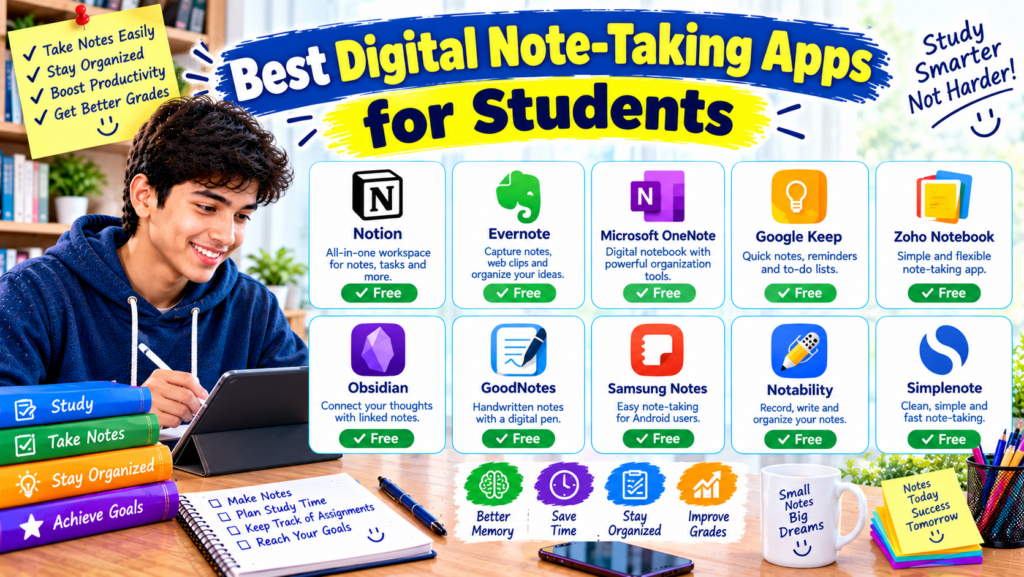
Have you ever opened your notebook before an exam and struggled to find the one formula, definition, or important point you remembered writing down? Maybe your class notes are scattered across different notebooks, screenshots, PDFs, and messages. When everything is stored in different places, even finding the right information can become a task of its own.
Digital note-taking can make this much easier.
With the right app, you can organize notes by subject, add images to explanations, save useful web pages, and search for a keyword instead of flipping through dozens of pages. You can also access your notes on different devices when the app supports synchronization.
But choosing an app is not as simple as downloading the most popular one. Some apps are excellent for typing notes on a laptop, while others work better for handwritten notes on a tablet. Some offer beautiful study dashboards, and others focus on keeping things simple.
In this guide, we will explore seven of the best digital note-taking apps for students, compare their free features, and explain how to build a note-taking system you can actually use throughout the school year.
What Makes a Good Digital Note-Taking App?
Before choosing an app, think about how you normally study.
If you type most of your notes, a keyboard-friendly app may be ideal. If you solve mathematics problems by hand, you might prefer an app that supports a stylus and handwritten diagrams.
A good student note-taking app should make it easy to:
- Organize notes by subject and topic.
- Search for important information.
- Add headings, lists, images, or diagrams.
- Find notes again when preparing for exams.
- Access your work on your preferred devices.
- Back up important notes or export them when needed.
You should also check whether the free version includes the features you need. Some apps limit the number of notebooks, available storage, or synchronization options on their free plans.
The best choice is the one that makes your notes easier to create, organize, and review.
1. Microsoft OneNote — Best Overall for Students
Best for: Students who want digital notebooks organized by subject.
Price: Free options are available; some Microsoft 365 features depend on your plan.
Works on: Windows, Mac, web, Android, and iOS.
Official website: Microsoft OneNote
Microsoft OneNote is a strong starting point if you want something that feels like a collection of traditional school notebooks, but with the convenience of digital search.
You can create a notebook for school, divide it into sections for individual subjects, and add separate pages for lessons or chapters. OneNote also supports typed notes, handwritten input on compatible devices, images, attachments, tags, and shared notebooks. Microsoft’s official OneNote guide explains these features.
Useful features
- Separate notebooks, sections, and pages.
- Typed notes and handwriting on supported devices.
- Images, attachments, and diagrams.
- Search tools and organizational tags.
- Sharing and collaboration.
- Access across supported devices.
How students can use OneNote
Imagine you have mathematics, biology, English, and computer studies every week.
Create a school notebook and make a section for each subject. Under biology, create pages such as “Cell Structure,” “Human Digestion,” and “Exam Revision.”
When your teacher explains an important concept, write a short explanation in your own words. Add a diagram or a picture of a relevant class handout when useful.
Before an exam, search for the chapter name and review the notes you collected throughout the term.
What to keep in mind
OneNote offers considerable flexibility, which can make the interface feel busy at first. Start with a simple notebook structure rather than creating dozens of sections immediately.
My recommendation: Choose OneNote if you want a traditional notebook experience that works well for several school subjects.
2. Notion — Best for Organized Study Notes and Dashboards
Best for: Students who want to combine notes, assignments, reading lists, and study plans.
Price: Free plan available, with additional paid plans.
Works on: Web, Windows, Mac, Android, and iOS.
Official website: Notion
Notion takes a different approach to note-taking. Instead of only creating pages of text, you can build a workspace that connects your notes with other parts of your academic life.
For example, you could create a page for each subject, an assignment tracker, and a list of topics you need to revise before exams. You can also use tables, checklists, and linked pages to organize information.
Notion’s free plan includes personal organization tools and databases, although some features have plan-specific limits. Eligible students at accredited colleges and universities may qualify for a free education upgrade. Check the official pricing page and education eligibility information for current details.
Useful features
- Custom pages for subjects and topics.
- Tables and databases for organizing notes.
- Checklists and task lists.
- Links between related pages.
- Templates for study dashboards.
- Web and mobile access.
A practical example
Suppose you are preparing for a computer science examination.
Create a page called “Computer Science Notes.” Inside it, add pages for programming basics, algorithms, databases, and revision questions.
On the main page, include a short list of topics you still find difficult. When you review a topic, update its status so you know what remains.
This setup can be particularly useful when your notes are connected to assignments and exam preparation.
The downside
Notion can encourage students to spend too much time designing their workspace. You might end up choosing icons, colors, and templates instead of reviewing your actual notes.
Keep your dashboard simple at first. A few subject pages and a revision checklist are usually enough to begin.
My recommendation: Try Notion if you enjoy structured pages and want to keep your notes and study planning in one place.
3. Google Keep — Best for Quick Notes and Reminders
Best for: Students who need to capture short notes quickly.
Price: Free for standard personal use.
Works on: Web, Android, and iOS.
Official website: Google Keep
Sometimes, you do not need a complete digital notebook. You just need somewhere to save a reminder, record a homework instruction, or write down an idea before forgetting it.
Google Keep is designed for this kind of quick note-taking. You can create notes and lists, add images or drawings, use labels and colors, pin important notes, and set reminders. Google also supports sharing notes with other people. (Google Keep Help)
Useful features
- Quick text notes.
- Checklists for homework.
- Color labels and pinned notes.
- Images and drawings.
- Reminders for important tasks.
- Sharing and synchronization across supported devices.
How students can use it
Imagine your teacher announces three homework tasks just before the class ends.
Open Google Keep and create a note called “Homework.” Add the tasks as a checklist so you can tick them off when they are complete.
You could also keep a note called “Questions for My Teacher” and add anything you need clarified during the next lesson.
What makes it useful?
Keep is easy to start using because you do not need to build a complicated folder system.
However, it is better suited to short notes, lists, and reminders than to managing a large collection of detailed subject notes. For long chapters and complex academic material, OneNote or Notion may be more suitable.
My recommendation: Use Google Keep if you want a lightweight place for quick notes and small academic reminders.
4. Obsidian — Best for Linking Related Notes
Best for: Students who want to build a connected collection of notes.
Price: Free for personal use; optional paid services are available.
Works on: Windows, Mac, Linux, Android, and iOS.
Official website: Obsidian
Obsidian is particularly interesting for students who want their notes to connect with one another.
Instead of treating every note as a separate document, you can link related topics. For example, a biology note about cells could link to another note about genetics, while a computer science note about algorithms could link to one about data structures.
Over time, these links help you build a personal knowledge library.
Obsidian stores notes as local Markdown files, and its core app is free to use. Optional services, including its official synchronization service, cost extra. (Obsidian pricing)
Useful features
- Notes stored as Markdown files.
- Links between related notes.
- Tags and search.
- Graph views for exploring connections.
- Community plugins and themes.
- Local storage and control over your files.
How students can use Obsidian
Start by creating a folder for a subject such as physics.
Make one note for each topic, using clear titles such as “Motion,” “Force,” and “Energy.” When a concept in one note relates to another, create a link between them.
For example, your note about force could link to your note about motion because the topics are connected.
When preparing for an exam, follow those links to review related concepts rather than studying every topic in isolation.
Is Obsidian beginner-friendly?
It can be, but it has a learning curve. Markdown and linked notes may feel unfamiliar if you have only used ordinary word processors.
You also need to understand how you will access your notes across devices. Synchronization is not the same as simply installing the app everywhere, and Obsidian’s official sync service is optional and paid.
My recommendation: Explore Obsidian if you enjoy connecting ideas and want more control over how your notes are stored.
5. Goodnotes — Best for Handwritten Notes and PDFs
Best for: Students who prefer writing by hand on a tablet.
Price: Free plan available, with paid upgrades.
Works on: Apple devices and supported Android, Windows, and web platforms; features vary by platform and plan.
Official website: Goodnotes
If you learn better by writing, drawing, or marking up class handouts, Goodnotes may be worth considering.
It offers digital notebooks and tools for handwritten notes. Depending on your device and plan, you can work with PDFs, images, handwriting, and other study materials.
This style of note-taking can be useful for subjects where you need to sketch diagrams, solve equations, or annotate worksheets.
Useful features
- Digital notebooks.
- Handwriting and drawing tools.
- PDF import and annotation.
- Images and other study materials.
- Handwriting-related tools and selected AI features, depending on the plan.
How students can use Goodnotes
Suppose your teacher shares a PDF containing mathematics exercises.
Open the document in Goodnotes, if supported by your version and plan, and use the available writing tools to solve questions directly on the pages.
You can also keep separate notebooks for subjects and use handwritten diagrams to explain difficult concepts.
Important free-plan limits
Goodnotes has a free plan, but it is not unlimited. Its current pricing information lists restrictions that include a limited number of notebooks and files, storage limits, and a limit on imported file size. Some export and synchronization features also vary by plan. Check the official Goodnotes pricing page before moving all your study materials into it.
Is it worth using?
Goodnotes makes the most sense if you have a compatible tablet and prefer handwritten notes.
If you mostly type on a Windows laptop, OneNote or Notion may be a more convenient starting point.
My recommendation: Try Goodnotes if handwriting and PDF annotation are central to the way you study, but check the free-plan limits first.
6. Apple Notes — Best for Students Using Apple Devices
Best for: Students who use an iPhone, iPad, or Mac and want a built-in note-taking option.
Price: Free.
Works on: Supported Apple devices.
Official website: Apple Notes guide
If you already use an iPhone or Mac, you may not need to download another note-taking app.
Apple Notes lets you create text notes, checklists, sketches, and notes containing images or scanned documents. On supported devices, it also offers handwriting and other tools. Notes can stay synchronized across devices through iCloud when configured. (Apple Support)
Useful features
- Quick text notes and checklists.
- Images and document scans.
- Sketches and handwriting on supported devices.
- Folders and note organization.
- Collaboration on shared notes.
- iCloud synchronization.
How students can use Apple Notes
Create a folder for each subject and a note for each chapter.
For example, your English folder could contain vocabulary lists, essay outlines, and reading notes. Your science folder could contain chapter summaries, diagrams, and questions to review before exams.
You can also scan a paper handout and save it with your notes, depending on the features available on your device.
What should you consider?
Apple Notes is most convenient if you mainly use Apple devices. If you switch between an iPhone and a Windows laptop or Android phone, check which access and synchronization options are available to you before choosing it as your main notebook.
My recommendation: Start with Apple Notes if you already own an Apple device and want a simple, built-in solution.
7. Joplin — Best for Open-Source and Offline-First Note-Taking
Best for: Students who want a flexible note-taking app with local notes and control over synchronization.
Price: The core app is free and open source; optional synchronization services may cost extra.
Works on: Windows, Mac, Linux, Android, and iOS.
Official website: Joplin
Joplin is a useful alternative if you want a note-taking system that does not depend on a single paid workspace.
It organizes notes into notebooks and supports tags, search, attachments, and Markdown. It is designed to work offline, so notes stored on your device remain available without an internet connection. You can configure synchronization using supported services, some of which may have their own costs or setup requirements. (Joplin’s official guide)
Useful features
- Notebooks and tags.
- Full-text search.
- Markdown notes.
- Images, PDFs, and other attachments.
- Offline access.
- Web clipping with supported browser extensions.
- Synchronization options with supported services.
How students can use Joplin
Create a notebook for each subject and use tags for topics that need extra revision.
For example, you could tag difficult physics notes with “exam-review” and “needs-practice.” Before an exam, search for those tags and work through the topics that need attention.
You can also save useful web pages as notes using its browser web clipper.
Is Joplin right for everyone?
Joplin offers flexibility, but setting up synchronization may require more effort than using a cloud-based app that handles everything automatically.
If you prefer a simple interface and do not want to configure anything, Google Keep may feel easier.
My recommendation: Consider Joplin if offline access, open-source software, and control over your notes are important to you.
Quick Comparison: Which Note-Taking App Should You Choose?
| App | Best use | Free option | Main consideration |
|---|---|---|---|
| Microsoft OneNote | Subject notebooks | Yes | Flexible interface may take practice |
| Notion | Notes and study dashboards | Yes | Easy to overcomplicate |
| Google Keep | Quick notes and reminders | Yes | Better for short notes than long chapters |
| Obsidian | Connected notes | Yes for personal use | Learning curve and sync setup |
| Goodnotes | Handwriting and PDFs | Limited free plan | Notebook and feature limits |
| Apple Notes | Apple-device note-taking | Yes | Best suited to Apple users |
| Joplin | Offline-first notes | Yes | Sync may need configuration |
There is no need to install all seven. Choose one app that matches your devices and the way you study.
How to Build a Digital Note-Taking System Step by Step
Choosing an app is only the first part. A simple system will help you keep your notes organized throughout the school year.
Step 1: Choose One Main App
Think about your everyday routine.
If you type notes on a laptop, start with OneNote or Notion. If you mainly need short reminders, try Google Keep. If you write by hand on a tablet, explore Goodnotes.
Choose an app that works with your current devices and budget.
Step 2: Create a Folder or Notebook for Each Subject
Avoid putting every lesson into one giant document.
Create a clear structure such as:
- Mathematics
- Science
- English
- Computer Studies
Inside each subject, create a separate page or note for each chapter or lesson.
Use titles that explain the content, such as “Algebra: Linear Equations,” instead of vague titles like “Class Notes 4.”
Step 3: Use a Consistent Note Format
A simple format makes revision easier.
For each lesson, try including:
Topic: The chapter or lesson name.
Main ideas: The most important points in your own words.
Examples: Worked examples, diagrams, or useful illustrations.
Questions: Anything you still need to understand.
Revision points: Key facts or ideas to review before an exam.
You do not need to fill every section for every subject. Use the parts that make sense for the lesson.
Step 4: Add Notes During or After Class
During a lesson, focus on capturing the important information rather than writing down every word.
You can expand the notes after class by adding explanations, correcting mistakes, and organizing the content into headings.
If you save a picture or a PDF, include a short description so you remember why it matters.
Step 5: Review Notes Regularly
Digital notes are most useful when you return to them.
After a lesson, spend a little time checking whether your notes make sense. Before an exam, use headings and search to find the topics you need to revise.
Try explaining a concept without looking at the note, then check what you missed. This helps you identify gaps in your understanding.
Step 6: Keep a Backup
Do not assume that installing an app on multiple devices automatically creates a complete backup.
Check how the app stores and synchronizes notes. For important schoolwork, consider using its supported export or backup options, and make sure you can retrieve your files if you change devices.
This is particularly important before deleting an app or switching to a different note-taking system.
Common Digital Note-Taking Mistakes to Avoid
1. Making Every Note Look Perfect
It is easy to spend too much time adjusting colors, choosing icons, and formatting headings.
A note does not need to look beautiful to be useful. Start by making it accurate and easy to read.
2. Writing Down Everything Word for Word
Copying every sentence from a lesson can leave you with long notes that are difficult to revise.
Focus on the main idea, important examples, and anything you find confusing. Rewrite explanations in language you understand.
3. Using Too Many Apps
If your science notes are in one app, mathematics notes are in another, and revision lists are somewhere else, you may waste time searching for information.
Try keeping your main subject notes in one place. Use a second app only when it provides a specific feature you genuinely need.
4. Forgetting to Name Notes Clearly
A note called “New Note” is difficult to recognize a month later.
Use descriptive titles that include the subject and topic. Consistent naming makes searching much easier.
5. Relying on Synchronization Without Checking It
Synchronization can be convenient, but it may depend on an account, settings, storage limits, or an internet connection.
Check that your notes appear on the devices you use. For important work, keep a separate backup when the app supports it.
6. Saving Information Without Reviewing It
Collecting notes is not the same as learning the material.
Make time to revisit important topics, answer practice questions, and explain concepts in your own words.
Frequently Asked Questions
1. What is the best digital note-taking app for students?
Microsoft OneNote is a strong all-around option for organizing notes by subject. Notion is useful for students who want customizable pages and study dashboards, while Google Keep is better for quick notes and reminders.
2. Which note-taking app is completely free?
Google Keep and Apple Notes are free options for their standard note-taking features. OneNote, Obsidian, and Joplin also offer free options, although synchronization services or certain features may require payment. Always check current plan details.
3. Is digital note-taking better than writing in a notebook?
It depends on your learning style. Digital notes can be easier to search, reorganize, and back up. Paper notebooks may feel more natural for some students and do not require a charged device. You can also combine both methods.
4. Which app is best for handwritten notes?
Goodnotes is designed for handwritten digital notes and PDF annotation on supported devices. OneNote also supports handwriting on compatible devices. Your experience will depend on the device, stylus, and features available in your plan.
5. Can I use digital note-taking apps on a laptop and phone?
Several apps, including OneNote, Notion, Google Keep, Obsidian, and Joplin, support multiple platforms. Check how synchronization works and whether any features are limited on your devices before choosing one.
6. How should I organize notes for exams?
Create separate notes for each topic, use clear headings, and highlight the concepts you find difficult. Before an exam, review the important sections and test yourself rather than only rereading the notes.
7. Are digital note-taking apps safe for school notes?
Review the app’s privacy settings, account security, and backup options. Avoid storing sensitive personal information unnecessarily, and follow your school’s rules when saving or sharing class materials.
Final Thoughts
The best digital note-taking app is the one that helps you keep your academic information organized without making studying more complicated.
If you want a traditional notebook structure, start with Microsoft OneNote. If you like custom dashboards, explore Notion. For quick reminders, Google Keep is a practical choice. Students who prefer handwriting can try Goodnotes, while Obsidian and Joplin are worth considering if you want more control over how your notes are organized and stored.
Choose one app, create a few subject folders, and use a consistent format for your next lessons. Give the system some time before deciding whether you need extra features.
Remember, the goal is not to collect the most notes or build the most attractive workspace. It is to make important information easier to understand, find, and use when you need it.